How to write prompts for our agentic Build with description
Make better browser bots right off the bat with agentic authoring. Build with description, axiom.ai's new way of building browser automation. Instead of building step by step, you write short prompts telling the AI what you'd like to automate.
New feature, new trick to pick up - is it complex? Hell no. We limit the prompts to 50 characters, and you can add as many as you want. That's to keep it simple. A prompt should describe an action; add as many as you need until you have replicated your task. Then click generate to assemble your steps.
Don't worry, the Builder hasn't gone anywhere. For automation pros who know their steps, you can still build step by step, and anything created by the agentic AI is assembled in the builder so you can edit and add steps as normal. But it can still be a useful shortcut for you.
If it's that simple, why this blog? Well, I want to show you how to craft your prompts for different use cases. I’m Alex, co-founder. Let's dive in, or skip straight to yours: I'll cover form filling, web scraping, web actions, logins and more.
How it works
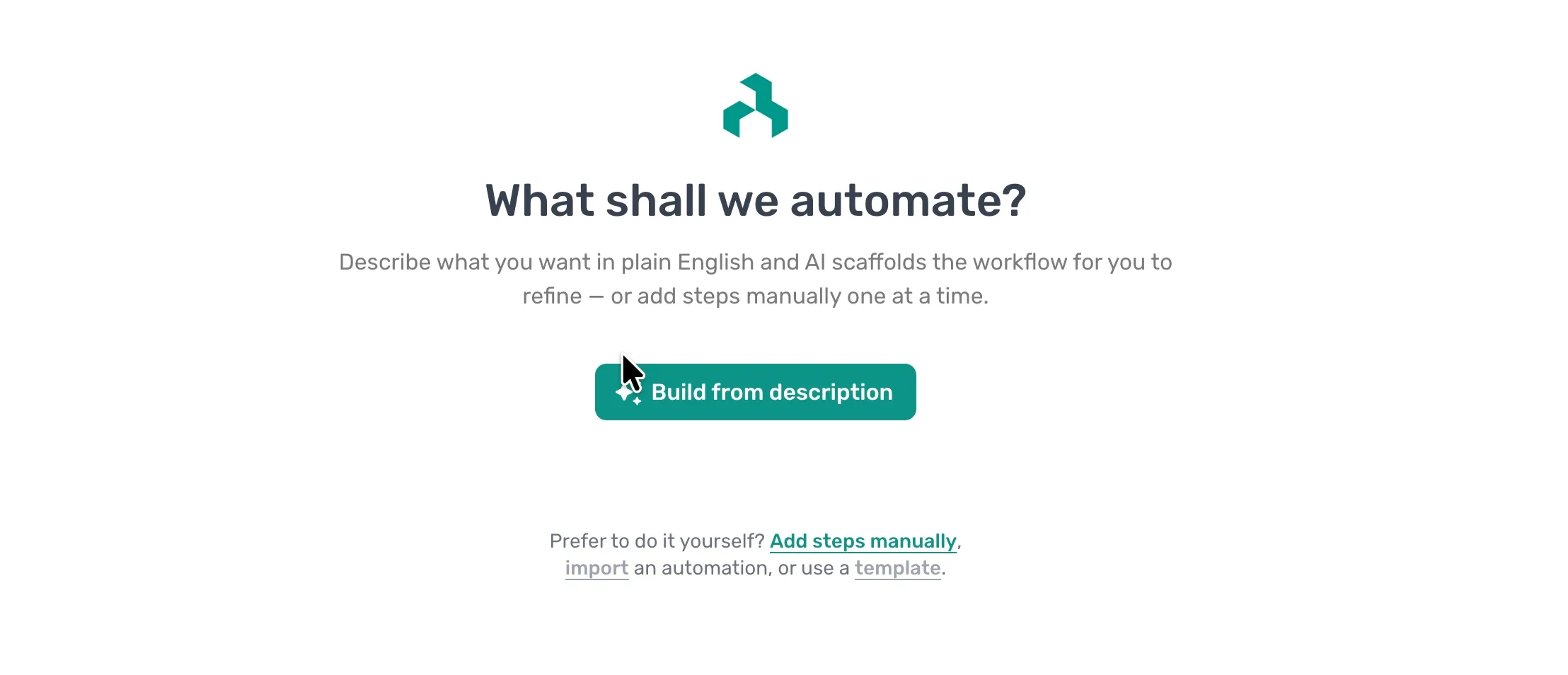
To start, click Build from description. Pros: If you'd rather do it yourself, you can click Add steps manually below.
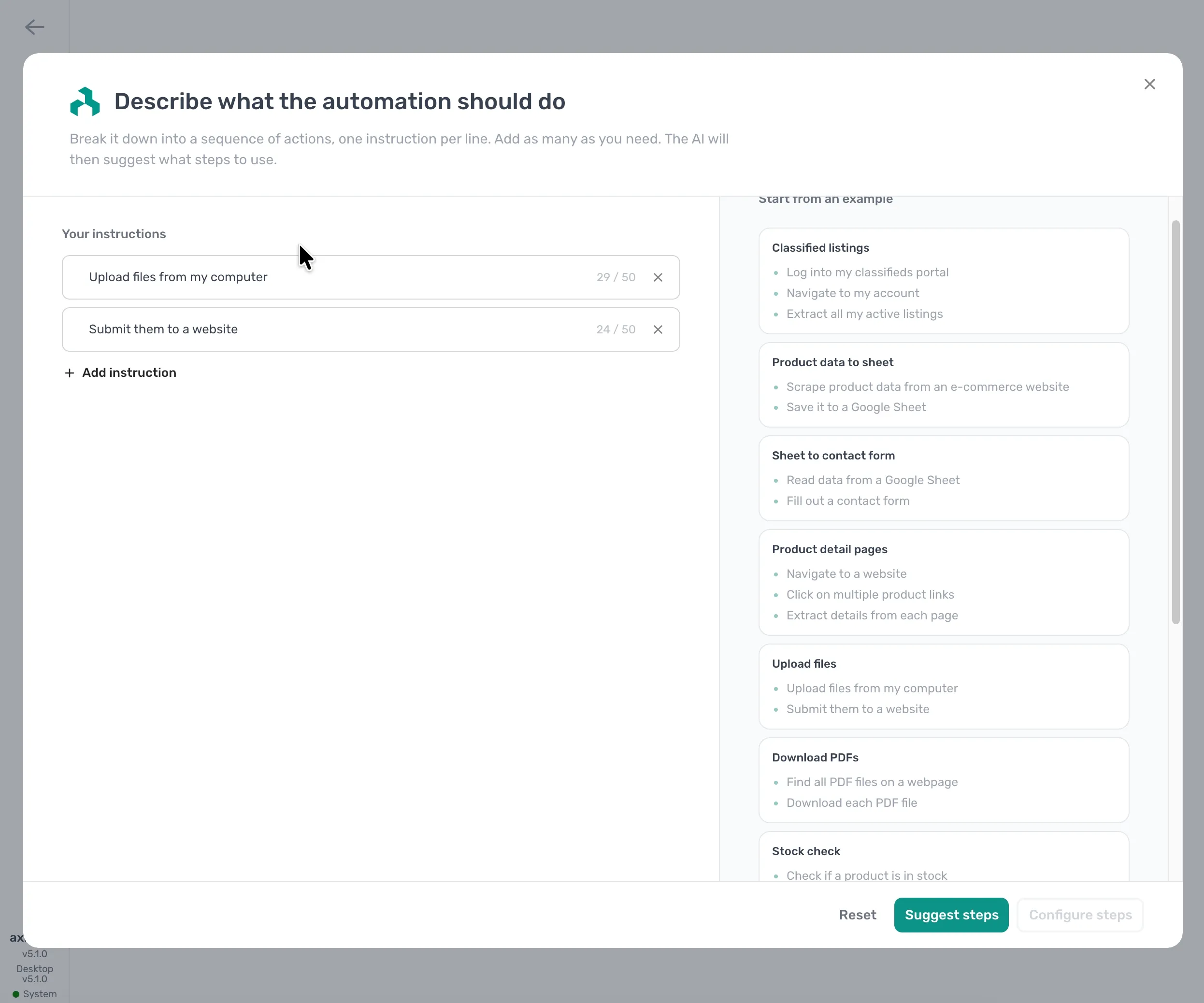
Start adding your prompts:
- Describe one action per prompt; they map to steps, plain as that. Press return to add it.
- Click Add instruction to add another.
- When you're done, click Suggest steps, then Configure steps.
Once the steps are assembled, axiom.ai guides you through configuring them. FYI, in our next releases, the agentic AI will also take over configuration for you: adding selectors, connecting data and so on.
Rules to follow when writing prompts
When writing your descriptions in axiom.ai, follow these simple rules for your prompts:
- Write one action per prompt. "Log in and scrape the orders" is several combined.
- Specify if you want to read or write data from a source.
- Say what repeats. Most automations are loops.
- Write in running order. List your prompts in the order the automation acts.
I have outlined examples below specific to use cases.
Web scraping use cases
The following prompts build a range of simple web scrapers.
Simple web scraper
Your instructions
- Scrape data from a web page27 / 50
- write to a google sheet23 / 50
Loop through list of urls web scraper
Your instructions
- Read data from a Google Sheet29 / 50
- Loop through urls in google sheet33 / 50
- Scrape data11 / 50
- Write to google sheet in loop29 / 50
Web form filling use cases
The following prompt is for creating bots that enter data into a simple web form. Tailor the prompt by altering what form fields to complete.
Simple form filling
Your instructions
- Read data from a Google Sheet29 / 50
- Go to webpage13 / 50
- Fill name, email and message fields35 / 50
- Click the submit button23 / 50
- Repeat for every row in the sheet33 / 50
Working with files
Bots can be created to upload/download files locally or to and from Google Drive.
Uploading files to website
Your instructions
- Upload files from my computer29 / 50
- Submit them to a website24 / 50
Downloading files
Your instructions
- Go to webpage13 / 50
- Download file locally21 / 50
Downloading files to Google drive
Your instructions
- Go to webpage13 / 50
- Download files to Google Drive30 / 50
General browser actions
You can also add prompts to get the agent to assemble bots for a range of general browser automation tasks.
Login
Your instructions
- Go to webpage13 / 50
- Download files to Google Drive30 / 50
Click multiple buttons in a listing
Your instructions
- Go to webpage13 / 50
- click multiple buttons22 / 50
Webhooks and integrations
The no-code builder has a number of integrations that can be leveraged by the agent to build complex agents such as webhooks and AI.
Connect to Zapier
Your instructions
- Receive data from Zapier24 / 50
- Go to the URL from the webhook30 / 50
- Scrape the product title and price34 / 50
- Send the results to my webhook30 / 50
Integrate AI to generate text
Your instructions
- Go to webpage13 / 50
- Scrape data11 / 50
- Integrate AI to generate response33 / 50
- Enter response into message field33 / 50
- Send message12 / 50
Google Sheets
If you are a heavy Google Sheets user we have many steps that the agent can use to create bots for your use case, from read data to row count.
Write data to same row
Your instructions
- Read data from a Google Sheet29 / 50
- Loop through URLs17 / 50
- Scrape data11 / 50
- Edit a row in a Google Sheet28 / 50
- Write data to Google Sheet26 / 50
Wrapping up - building bots the agentic way
A good prompt isn't clever, it's specific and stuffed with the context. Break the job into single actions, name your sites and your data, say what repeats, and the AI meets you more than halfway. Open the Builder, hit Build with description, and write your next automation one prompt at a time. If you are looking to create complex automations, we recommend you start simple and scaffold an MVP with the agent. Then edit and create the bot using the builder.
Over the coming months we will be implementing new features and changes to the build from description UI, giving more capabilities to the agent. The end goal is the agent will create and configure a bot, and test it against your description. These features will be rolling out in the coming months, starting with MCP.