Automate Google Forms
Google Forms is good at collecting answers and dropping them in a Sheet. The hard part is the other direction, putting data into a form over and over. axiom fills and submits a Google Form for you, pulling each answer from a sheet and working through every row, the short answers, the multiple choice, the dropdowns, the dates. There are three ways to start, with no code, with code, or with a Claude skill.
What I mean by automating Google Forms
Automating Google Forms means a bot does the filling and submitting you would otherwise do by hand. You point it at the form, map each answer to a question, and it works through your data one row at a time. Short answer, paragraph, multiple choice, checkboxes, dropdown, linear scale, date, the bot fills each one the way a person would, hits submit, and starts the next response.
Reading responses is already solved
Before you automate anything, know what Google already does. A Google Form pushes every response into a linked Google Sheet, and there is a Forms API and Apps Script on top of that. So if you only need to read the answers, you do not need a bot. The data is already in a Sheet.
The gap is the other direction, getting data into forms. Filling the same form again and again from a list. Seeding a form with test responses before you launch it. Submitting registrations or entries you have been asked to handle. That is where a browser bot earns its place, it does the typing and clicking a person would, at the pace you set.
Who this is for
This is for anyone who has to put the same answers into Google Forms over and over. Submitting entries from a spreadsheet, registering a list of people, logging the same weekly report through a form. And for the team that built a form and wants to test it with a hundred responses before it goes live. No-coders and coders both, since you can build it without code and drop into code when you want.
How I'd approach it
First, ask if you even need a bot. If you own the form and just want the answers, open the linked Sheet and you are done. If you need to put data in, then map the form. List the questions in order and where each answer comes from in your sheet. Build the steps in the Chrome extension, run one row to check it, then loop the rest.
Map first, test one, then let it run. That order saves you from submitting a hundred wrong responses. It is why I would reach for Build with description to lay out the first draft.
Automate Google Forms from a description
Describe the form in plain words in the Chrome extension and it builds the steps for you. Give it the questions and where each answer comes from, then run it. Explore no-code. Note: Build from description is coming very soon. In the meantime you can still use the no-code builder.
To the right is an example. Describe the form and let the AI lay out the steps of your bot.
Chrome extensionInstructions
- Go to the Google Form page26 / 500
- Enter the name14 / 500
- Select the gender17 / 500
- Enter the email15 / 500
- Enter the address17 / 500
- Enter the zip code18 / 500
- Click submit12 / 500
Automate Google Forms in code
Build with code. If you would rather script it yourself, this is the path. Explore code
Connect Playwright (or Puppeteer) to our cloud Chromium and write the same scripts you'd run locally, without managing the browser.
Code toolimport { chromium } from "playwright";
const browser = await chromium.connectOverCDP(
`wss://cdp-lb.axiom.ai/?token=${process.env.AXIOM_API_KEY}`
);
const FORM = "https://docs.google.com/forms/d/e/FORM_ID/viewform";
try {
const context = browser.contexts()[0];
const page = context.pages()[0] ?? await context.newPage();
// Each row would come from your Google Sheet
const rows = [
{ name: "Ada Lovelace", gender: "Female", email: "ada@example.com", address: "12 Hill St", zip: "EC1A 1BB" },
{ name: "Alan Turing", gender: "Male", email: "alan@example.com", address: "5 King Rd", zip: "M1 4WP" },
];
for (const row of rows) {
await page.goto(FORM);
// Text fields, matched by their aria-label so a reorder does not break them
await page.locator('input[aria-label="Name"]').fill(row.name);
// Gender, a multiple choice option clicked by its label
await page.getByRole("radio", { name: row.gender }).click();
await page.locator('input[aria-label="Email"]').fill(row.email);
await page.locator('input[aria-label="Address"]').fill(row.address);
await page.locator('input[aria-label="Zip code"]').fill(row.zip);
// Submit, then start a fresh response
await page.getByRole("button", { name: "Submit" }).click();
await page.getByRole("link", { name: "Submit another response" }).click();
}
} finally {
await browser.close();
}
Build with a Claude skill
Build no-code or code bots with a skill.
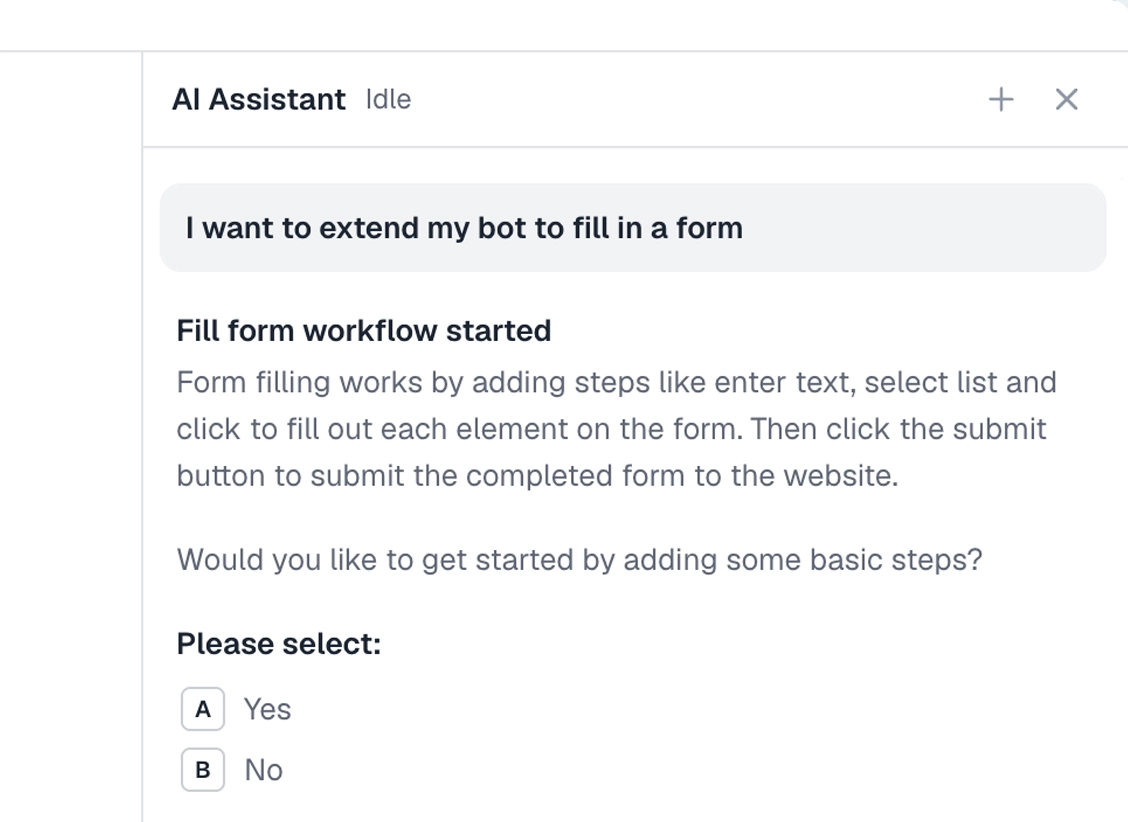
Add the Claude skill and describe the Google Form. It builds the bot for you, no-code or code, mapping each question to your data and handling the different answer types.
What can you automate in Google Forms?
Most Google Forms. A couple of cases worth knowing first.
Works well
- Submitting entries from a spreadsheet
- Short answer and paragraph questions
- Multiple choice, checkboxes, and dropdowns
- Dates, times, and linear scales
- Seeding a form with test responses
Harder
- File upload questions, which need a signed-in Google account
- Forms that require sign-in
- Forms with section logic that branches
Don't try
- Stuffing a poll or a ballot
- Submitting spam or fake entries
- Anything against Google's terms
What I'd watch out for
Google Forms looks simple, but a few things trip up a bot. Here is what I would watch for.
Target the question with a custom CSS selector
Google Forms renders each question as a block without a stable id, so a selector tied to position breaks the moment you reorder a question. In the selector tool, switch to a custom CSS selector and match on an attribute that does not move, like the field's aria-label. For example:
input[aria-label="Email"]
That finds the field by its accessible label rather than where it sits on the page, so the step keeps working when the form changes.
File uploads need a Google sign-in
A file upload question only works when the run is signed into a Google account. Store the cookies for that account, or leave upload questions out.
Required questions and validation
If a required question is empty, or an answer fails validation, the form will not submit. Map every required question before you loop, or the whole run stalls on the first row.
Test one response first
Run a single row and check the form's response Sheet before you let it loop. That is much easier than deleting a hundred bad responses later.