Automate Google Drive
Google Drive is where most teams park their files, and most teams move them around by hand. Renaming a stack of attachments, dropping invoices into the right client folder, sharing a contract with the right people, pulling a daily export down to a local disk. axiom drives Drive from the browser, so the click work happens automatically, on a schedule, or one row at a time from a sheet. There are three ways to start, with no code, with code, or with a Claude skill.
What I mean by automating Google Drive
Automating Google Drive means a bot does the file shuffling you would otherwise do by hand. Uploading a batch of files into a specific folder. Renaming each one to match a contract or invoice number. Moving items between folders as their status changes. Sharing a file with a list of email addresses and setting the right permission. Downloading a daily export from a folder a partner drops into. The bot opens Drive in Chrome, signed into your account, and clicks through it the way a person would.
Reading and writing data is already solved
Before you reach for a bot, know that Google Drive has a real API and Google Sheets has tight integrations across the rest of axiom. If you only need to read files (list them, fetch metadata, pull a Sheet's rows) the API is the right tool, and our Google Sheets steps cover the common cases without any Drive code.
Where a browser bot earns its place is the click work the API does badly or doesn't do at all: moving items by drag-and-drop, sharing through the share dialog, applying the same set of clicks to a folder full of files, working across Drive plus another web app in one flow.
Who this is for
This is for anyone with a Drive folder that wants babysitting. Operations teams sorting a daily drop into client subfolders. Finance teams renaming bank statements to match a register. Hiring teams sharing each candidate's CV with the right interview panel. Anyone running a weekly report that ends with "and then upload it to Drive". And for the developer who wants the upload/share/move flow scripted, the same browser scripts run on our cloud Chromium without the Google Drive API surface area.
How I'd approach it
Start by listing the click work, not the file work. "Upload this file, rename it, move it into that subfolder, share it with this email." Pull each of those values from a Google Sheet column, then loop the rows. Build the steps in the Chrome extension, run it on one row to check, then let it loop.
For anything that's pure-API-shaped. Read a list of files, fetch metadata, pull rows. I'd reach for the Google API directly. For everything else, a browser bot is the shortest path.
Automate Google Drive from a description
Describe the Drive work in plain words in the Chrome extension and it builds the steps for you. Tell it the source folder, where to put each file, and how to name it. Explore no-code.
To the right is an example. Describe the Drive work and let the AI lay out the steps of your bot.
Chrome extensionInstructions
- Open Google Drive in the browser32 / 500
- Open the source folder22 / 500
- For each file row in my Sheet, upload the file46 / 500
- Rename it to the value in column B34 / 500
- Move it to the subfolder named in column C42 / 500
- Share it with the email in column D35 / 500
Automate Google Drive in code
Build with code. You do not have to write the script by hand. Describe the upload to our Claude skill and it generates a ready-to-run Node script you own, then debugs it with you, fixing a selector that stopped matching or a step that stalls, until the run is clean. Prefer to write it yourself? Explore the code tool. Either way, the script looks like this.
These are axiom's step functions, the same step library that powers the no-code builder, available as code. Describe the upload to the Claude skill and it generates and debugs this script for you. It runs on our cloud Chromium, with nothing to manage.
Generate it with the Claude skill1import { AxiomApi } from "axiom-api";2 3const axiom = new AxiomApi(process.env.AXIOM_API_KEY);4 5await axiom.browserOpen();6try {7 await axiom.goto("https://drive.google.com/drive/folders/FOLDER_ID");8 await axiom.enterText('input[type="file"]', "/tmp/invoice-001.pdf");9 await axiom.wait(8000); // Drive renders the file in asynchronously10 await axiom.click('div[aria-label="invoice-001.pdf"]');11} finally {12 await axiom.browserClose();13}14 Build with a Claude skill
Build no-code or code bots with a skill.
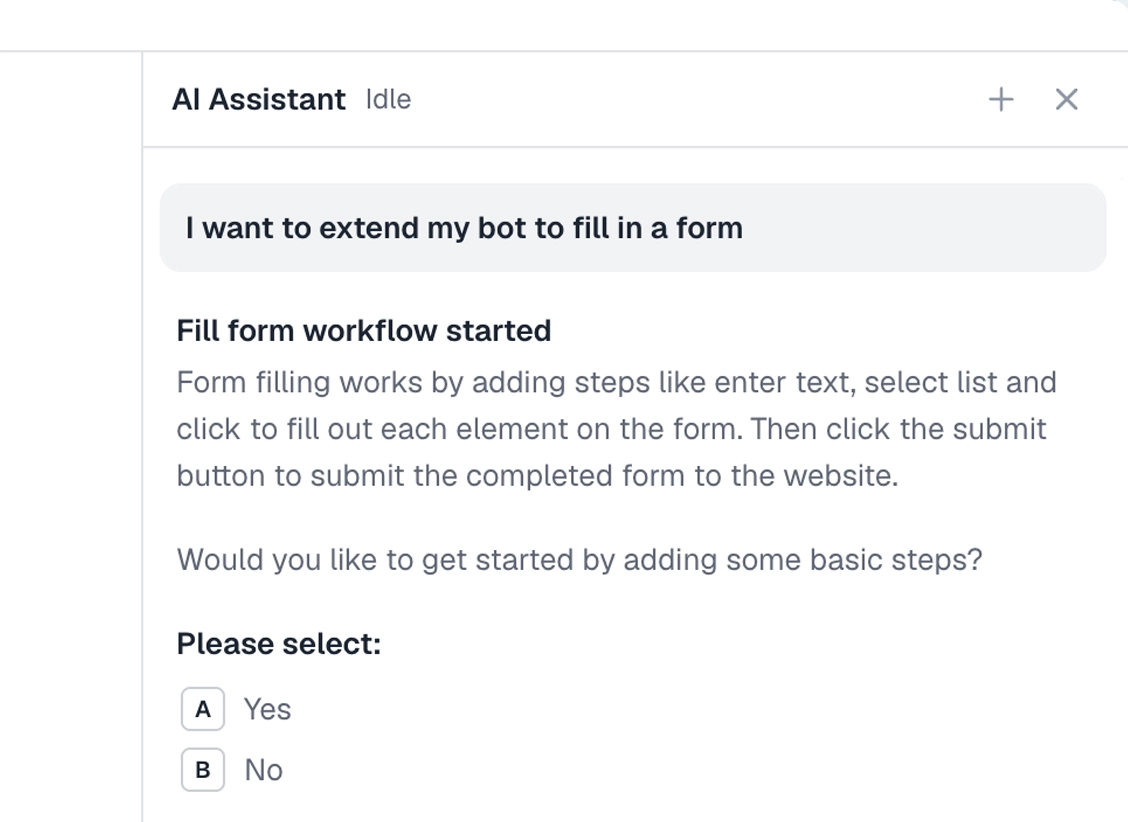
Add the Claude skill and describe the Drive work. It builds the bot for you, no-code or code, handling the upload, rename, move, share clicks for each row in your sheet.
What can you automate in Google Drive?
Most click-driven Drive work. A couple of cases worth knowing first.
Works well
- Uploading files from local disk into a target folder
- Renaming a batch of files from a sheet
- Moving items between folders by name
- Sharing files with specific people and a permission level
- Downloading a daily export from a partner-shared folder
Harder
- Bulk-applying permissions across thousands of items at once (slow in a browser; reach for the API)
- Folders containing >5,000 items (Drive's UI gets sluggish)
- Operations that require admin-console access
Don't try
- Anything against Google's terms of service
- Driving someone else's Drive without their consent
- Mass scraping of shared files
What I'd watch out for
Google Drive looks simple in Chrome, but a few quirks bite a bot. Here's what I'd watch for.
Sign-in state matters
The run needs to be signed into the Google account that owns the folder. Store the cookies for that account in axiom and load them on every run.
The UI is laggier than it looks
Drive renders files asynchronously and the click targets don't always exist when a step thinks they do. Build short waits between the upload and the next interaction, or wait for a specific element to appear before continuing.
Right-click menus need keyboard or context click
The Rename and Share menus open from a right-click. Some no-code steps default to a left-click. Switch to context-click in the step's options when the menu doesn't open.
Test one row first
Run a single row end-to-end before you loop. It's much easier to fix a selector than to undo a hundred wrongly-named files.