Automate file upload to a website
Attaching the same files to web forms, product pages, and portals is slow, repetitive work. A bot can do the file upload for you, picking the field, choosing the file, and looping a whole list from a sheet. The one thing to decide up front is where the files come from, your own machine or your Google Drive. There are three ways to start, with no code, with code, or with a Claude skill.
What I mean by file upload to a website
A file upload to a website is the moment you click an upload field, pick a file, and the page takes it. Automating it means a bot does that for you. It finds the upload field, points it at a file, and submits, one file or a whole list of them from a sheet. Give it the paths and the pages, and it attaches every file without you opening a single dialog.
Where the files come from
The first thing to settle is not how to upload, it is where the files live. That choice decides how you run it.
If the files are on your own machine, run it in the desktop app. The Upload a file step takes a path on your computer and attaches it, and it only works in the desktop app.
If the files are in the cloud, upload from Google Drive. The Upload a file from Google Drive step takes a Drive URL, which is the way to go when the bot runs in the cloud with no machine of yours involved. That same Drive step can also pull from a local folder when you run it on the desktop, so one step covers both.
Decide where the files come from first, and the rest of the build follows.
Who this is for
This is for anyone who attaches the same kinds of files to the web all day. Adding images to product pages in a CMS, uploading documents to a portal, attaching receipts to a form. And for anyone sitting on a folder of files and a sheet of pages that need them. No-coders and coders both, since you can build it without code and drop into code when you want.
How I'd approach it
Start with where the files come from, local or Drive, because that picks your runner. Then list what goes where. For one field with many files, put the paths in a Google Sheet and loop. For files spread across pages, like product pages in a CMS, put one row per page with the page URL and the file in it, then loop both.
Source first, then map files to pages, then loop. There is a template that uploads from a Google Sheet to start from, and I would lay out the first draft with Build with description.
Upload files from a description
Describe what to upload and where the files come from in the Chrome extension and it builds the steps for you. Give it a few short lines, check what it made, and run it. Explore no-code.
To the right is an example. Describe what to upload and where the files come from, and the AI lays out the steps.
Chrome extensionInstructions
- Read a list of file paths from a Google Sheet45 / 500
- Go to the upload page21 / 500
- Click the upload field22 / 500
- Choose the file for this row28 / 500
- Wait for the upload, then take the next row43 / 500
Upload files in code
Build with code. If you would rather script it yourself, this is the path. Explore code
Connect Playwright (or Puppeteer) to our cloud Chromium and write the same scripts you'd run locally, without managing the browser.
Code toolimport { chromium } from "playwright";
const browser = await chromium.connectOverCDP(
`wss://cdp-lb.axiom.ai/?token=${process.env.AXIOM_API_KEY}`
);
try {
const context = browser.contexts()[0];
const page = context.pages()[0] ?? await context.newPage();
// One row per page. These would come from your Google Sheet.
const rows = [
{ url: "https://example.com/products/1/edit", file: "images/widget.jpg" },
{ url: "https://example.com/products/2/edit", file: "images/gadget.jpg" },
];
for (const row of rows) {
await page.goto(row.url);
// Point the upload field at a file on disk
await page.setInputFiles('input[type="file"]', row.file);
// Submit, then wait for the upload to finish before the next row
await page.click("button[type=submit]");
await page.waitForSelector(".upload-done");
}
} finally {
await browser.close();
}
Build with a Claude skill
Build no-code or code bots with a skill.
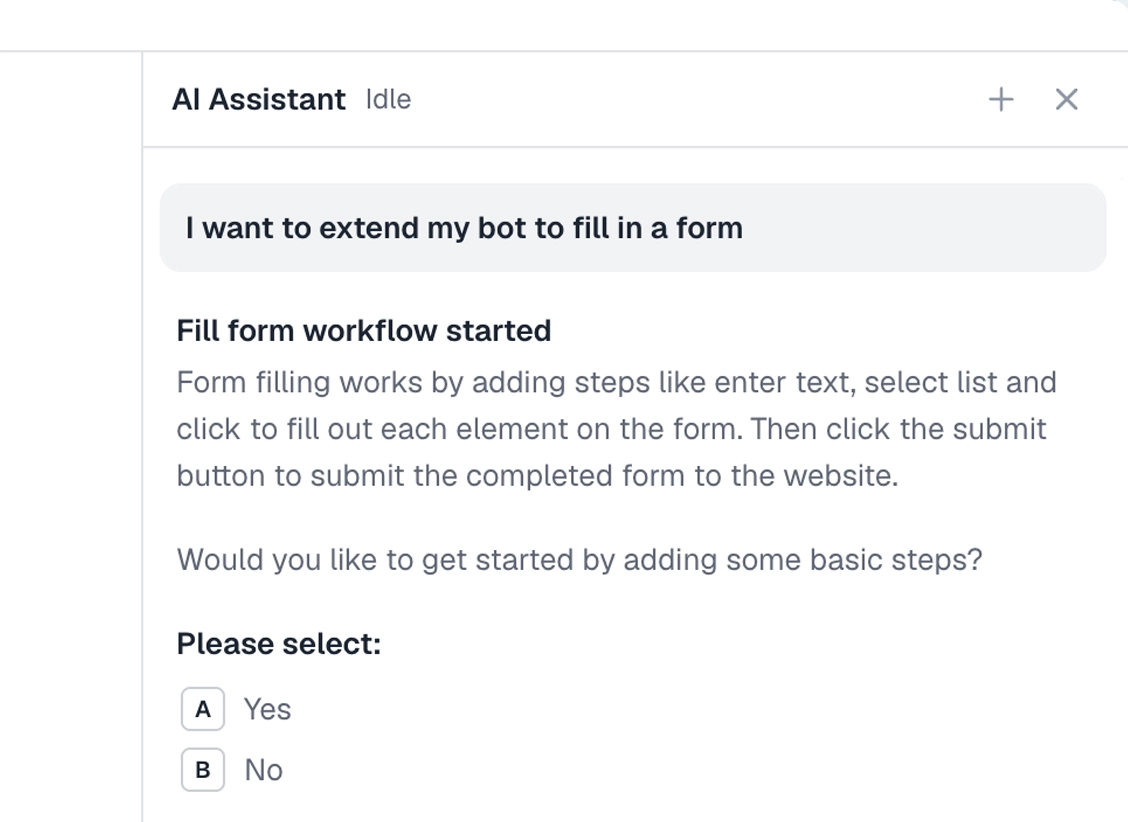
Add the Claude skill and describe what to upload and where the files come from. It builds the bot for you, no-code or code, from your machine or from Google Drive.
What can you upload?
Most upload fields. A couple of cases worth knowing first.
Works well
- Images to product pages in a CMS
- Documents and PDFs to a portal
- Receipts and attachments to a form
- Many files to one field from a sheet
- Files spread across many pages
Harder
- Drag-and-drop only upload zones
- Uploads behind a login or 2FA
- Very large files on a slow connection
Don't try
- Uploading content you have no right to
- Anything against a site's terms
- Flooding a site with junk uploads
What I'd watch out for
Uploads are simple until the file is not where the bot expects. Here is what I would watch for.
Local uploads need the desktop app
The Upload a file step only reads files off your computer when the bot runs in the desktop app. In the cloud, upload from Google Drive instead, or use the Drive step that can do both.
Check the path and permissions
If a file will not upload, check the filename and path are right, the file is actually there, and your user has read access to the folder. A wrong path is the usual culprit.
Wait for the upload to finish
A big file takes time to go up. If the bot moves on too soon, the form submits without the file. Add a wait sized to the file, or wait for the page to confirm the upload.
Drag-and-drop zones
Some upload areas only accept a drag, not a click. If selecting the field does nothing, the page is often hiding a real file input behind the drop zone, so point the step at that input instead.