Automate Chrome
Chrome is where the work happens, and browser automation splits two ways. Developers reach for Selenium, Puppeteer, or Playwright. Everyone else gets stuck, because the browser fights back with cookies, bot detection, and settings you wire up by hand. axiom gives you both a no-code extension and a code tool, and it handles the browser parts for you. There are three ways to start, with no code, with code, or with a Claude skill.
What I mean by automating Chrome
Automating Chrome means handing the clicking, typing, and navigating you do in your browser to a bot that runs in that same browser. axiom is a Chrome extension, so it works on any site you can open in a tab, using the Chrome session you are already signed into. No separate app, no copy of your logins kept somewhere else. You can run it right there in your Chrome, or send the same job to the cloud on Chromium when you want it on a schedule.
The hard part is the browser, not the clicks
Clicking through a task once is easy. The hard part of automating Chrome is the browser itself. With code you would drive it using Selenium, Puppeteer, or Playwright, and they are good tools, but you still have to solve the rest by hand. Sites set cookies you need to keep or clear. Pages pull in heavy resources you may want to block so a run is fast and cheap. Sites run bot detection you have to get past. Long jobs need their own profile so sessions do not collide.
axiom hands you those as controls instead of code. Keep or carry cookies, block images and other resources, get past common bot blocking, and run each job in its own profile, set in the no-code tool or called from the code tool. Same browser engine underneath, far less plumbing. So this works whether you are a no-coder who never wants to see a config, or a coder who would rather not rebuild the same browser setup on every project.
Who this is for
This is for anyone who lives in Chrome and repeats the same work in it, checking a dashboard, copying numbers between tabs, filling the same web app. And it is for the developer who has wired up Selenium, Puppeteer, or Playwright before and is tired of rebuilding cookie handling, proxies, and anti-bot tricks on every project. No-coders get the controls without the code. Coders get the same controls without the boilerplate. Both automate the same Chrome.
How I'd approach it
There are two honest paths. If you want it done fast and visible, build it no-code in the extension, run it in your Chrome, and reach for the browser controls when a site pushes back. If you live in code, connect Puppeteer or Playwright to our cloud Chromium and let the same controls handle cookies, resource blocking, profiles, and bot detection, so you are not writing that part again.
Most people should try no-code first, because the hard browser parts are already solved for you. Move into code when you need it, not by default. Either way I would lay out the first draft with Build with description, then tidy the steps.
Automate Chrome from a description
Describe the task in plain words in the Chrome extension and it builds the steps for you. Give it a few short lines, check what it made, and run it. Explore no-code.
To the right is an example. Describe the task and the AI lays out the steps, right inside Chrome.
Chrome extensionInstructions
- Open the dashboard in Chrome and log in39 / 500
- Read the open tickets on the page33 / 500
- Copy each ticket number into a Google Sheet43 / 500
- Mark the ticket as seen23 / 500
- Move to the next one20 / 500
Automate Chrome in code
Build with code. You do not have to write the script by hand. Describe the run to our Claude skill and it generates a ready-to-run Node script you own, then debugs it with you, fixing a selector that stopped matching or a step that stalls, until the run is clean. Prefer to write it yourself? Explore the code tool. Either way, the script looks like this.
These are axiom's step functions, the same step library that powers the no-code builder, available as code. Describe the run to the Claude skill and it generates and debugs this script for you. It runs on our cloud Chromium, with nothing to manage.
Generate it with the Claude skill1import { AxiomApi } from "axiom-api";2 3const axiom = new AxiomApi(process.env.AXIOM_API_KEY);4 5await axiom.browserOpen();6try {7 // The pages you would open by hand each morning8 const dashboards = [9 "https://example.com/site-a/status",10 "https://example.com/site-b/status",11 ];12 13 for (const url of dashboards) {14 await axiom.goto(url);15 const status = await axiom.scrape(".health");16 console.log(url, status);17 }18} finally {19 await axiom.browserClose();20}21 Build with a Claude skill
Build no-code or code bots with a skill.
Add the Claude skill and describe what you want Chrome to do. It builds the bot for you, no-code or code, and sets the browser controls, cookies, resource blocking, profiles, and bot detection, so you do not have to.
What can you automate in Chrome?
Most of what you do in a tab. A couple of cases worth knowing first.
Works well
- Repeating a task across many tabs or sites
- Moving data between a web app and a sheet
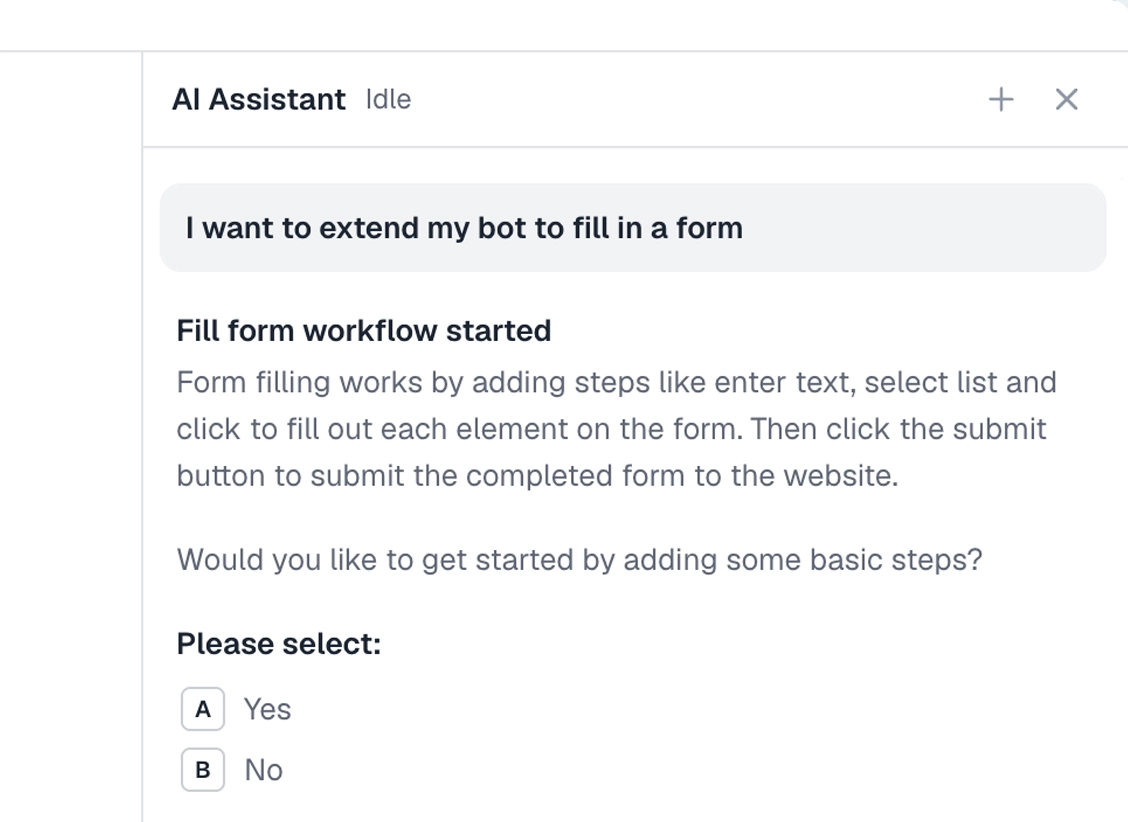
- Filling and submitting web forms
- Downloading reports on a schedule
- Checking a dashboard and acting on it
Harder
- Sites with heavy bot detection
- 2FA logins
- Sites with strict rate limiting
Don't try
- Anything against a site's terms
- Solving captchas to abuse a service
- Mass account creation
What I'd watch out for
Chrome is a moving target. Sites change, and so does the browser. Here is what I would watch for.
Use your session, or carry the cookies
On the desktop a bot can use the Chrome session you are already signed into. In the cloud there is no you logged in, so store the cookies or sign in as a step. Decide which before you schedule it.
Bot detection
Some sites watch for automation and block it. axiom can run with stealth settings and proxies to get past common checks, but keep it legitimate. Evasion is for reaching a site you are allowed to use, not for hammering it or breaking its terms.
Resources and profiles
Block images and other heavy resources to keep runs fast, and give each job its own profile so logins and cookies do not collide. Both are settings in the no-code tool, or calls in code.
Selectors over positions
A step tied to a spot on the page breaks when Chrome reflows the layout. Pick the element with the selector tool so it holds up.
Local versus cloud
Running in your own Chrome is good for watching and debugging. Running in the cloud frees your machine, but it needs its own login and any proxies set up. Build local, then move to cloud.