Scrape Facebook Marketplace for every search term in a Google Sheet
How to scrape Facebook Marketplace for every search term in a Google Sheet: install the Chrome extension, click Build from description, tell the agent what you want, and follow its prompts. A working bot is built and tested in minutes.
Here is how the automation works. To scrape Marketplace for a list of search terms, loop through the terms in a Google Sheet with Loop through data, skip any term that already has a date beside it with If condition, open Marketplace's search URL with the term appended, read the title, price and link of every listing with Get data from bot's current page, and write them to a second tab with Write data to a Google Sheet. A Date and time step and Find row in a Google Sheet then write today's date next to the term, so the next run skips it.
Build the Facebook Marketplace scraper from a description
Describe it and click the button: the agent builds and tests the scraper in your Chrome extension. Marketplace only shows listings to a signed-in account, so runs use your own logged-in Facebook in Chrome, on the desktop app; for a cloud run, store your cookies, or add a stored credential with its 2FA secret and the bot logs in itself.
- Read search terms from my Terms tab
- Skip the terms that already have a date
- Search Facebook Marketplace for each term
- Scrape the title, price and link of each listing
- Write them to my Listings tab
- Write today's date next to the term
You need a Google Sheet with two tabs: Terms, one search term per row in column A with no header and column B empty, and Listings, empty. Keep it small and slow, a handful of terms with a modest number of results each: Facebook watches for scraping and blocks a run that goes too fast.
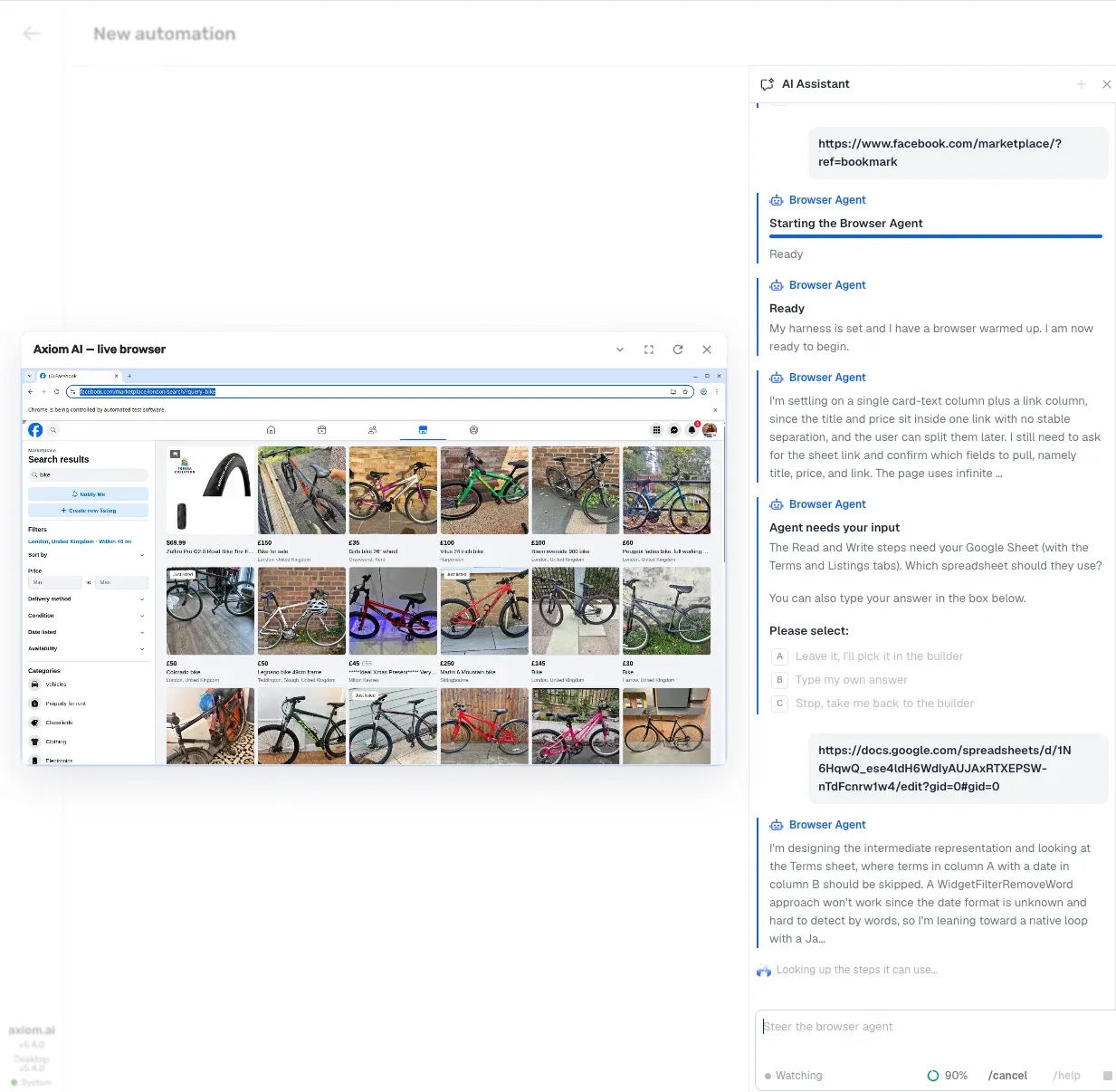
Build the Facebook Marketplace scraper step by step
The steps the agent builds, as the Builder shows them: each step by its name, with the fields to set under it. Add them yourself in this order in the step-by-step builder, or open the agent's result there to adjust it.
- 1.0
Go to page - 2.0
Read data from a Google SheetSpreadsheet: your sheetSheet name: Terms
- 3.0
Loop through data- repeats for every row in
[google-sheet-data]
- 3.1
If conditionData to check: the current row of the loopCondition to check: JS == true, true when the row's date column is emptyReverse condition: Run steps if condition is true
- 3.1.1
Go to pageURL: https://www.facebook.com/marketplace/search/?query= followed by the term column of the row
- 3.1.2
Get data from bot's current pageSelect: the listing cards on the results page, with the title, price and link as three columnsMax results: the number of listings you want per termWait time between scrolls (ms): 2000
- 3.1.3
Write data to a Google SheetSpreadsheet: your sheetSheet name: ListingsDATA:[scrape-data]Write options: Add to existing data
- 3.1.4
Date and timeData: CurrentSelect format: Date
- 3.1.5
Find row in a Google SheetSpreadsheet: your sheetSheet name: TermsValues (comma separated): the term column of the row
- 3.1.6
Write data to a Google SheetSpreadsheet: your sheetSheet name: TermsDATA:[date-and-time]Write options: Add to existing data, starting at B followed by the row Find row in a Google Sheet found
- repeats for every row in
Common questions about scraping Facebook Marketplace
Why does Facebook Marketplace show a login page instead of the results?
The run is not signed in. Marketplace only shows listings to a signed-in account, so run the bot on the desktop app with Facebook open in Chrome, or, for a cloud run, store your cookies or add a stored credential with its 2FA secret so the bot logs in itself.
Why does the Facebook Marketplace scraper stop with a block or a check?
The run made too many requests in too short a time. Slow it down and break a large run into smaller batches: raise Minimum wait before scraping (ms) and Wait time between scrolls (ms), lower Max results, run a few terms at a time rather than the whole list, and turn on bypass bot detection. Do not try to push through a block.
Why does the Facebook Marketplace scraper return no listings?
Facebook has changed its markup, so the selector no longer matches, or the page had not loaded when the scraper read it. Open a results page and reselect a listing card, raise Minimum wait before scraping (ms), and check that Max results is not 0. When a run fails, hand it to the agent and it repairs the step.
Why does the Facebook Marketplace scraper search a term twice?
The date was not written back, so the term still has an empty date column. In the second Write data to a Google Sheet step, check Sheet name is Terms and the starting cell is B followed by the row Find row in a Google Sheet found, not a fixed cell.
Can I scrape Facebook Marketplace without code?
Yes. The automation opens Marketplace's own search page in your browser and reads the listings off it, so there is no Facebook API, access token or script; the agent builds it from the lines above.
Can I scrape the Facebook Marketplace listings themselves, not just the links?
Yes, with a second bot. Keep this one collecting links from each search, and run another one independently to open those links, as in scrape data from a list of URLs in a Google Sheet. Describe it to the agent as "Read Marketplace links from my Google Sheet, scrape the product data, write it to the sheet." Each listing is a page load, so keep the list short and the waits long.
Can I run the Facebook Marketplace scraper on a schedule?
Yes, in the cloud with the cookies stored. Run it now and then, not on a tight loop: once a day is plenty for watching prices, and gentler on Facebook. To search every term again, clear column B of the Terms tab.
Can I scrape Facebook Marketplace into Excel or a CSV file?
Yes. Swap the first Write data to a Google Sheet step for Write data to a Excel sheet or Export to CSV, and keep the second one, which writes the date back to the Terms tab.
Where do I get help?
Get in touch with support, or ask in the axiom.ai community.
Related guides
Scrape YouTube search results for every search term in a Google Sheet
- Read search terms from my Terms tab
- Search YouTube for each term
- Scrape the title and link of the first 10 videos
- Write them to my Videos tab with the term
Scrape Instagram post links for every search term in a Google Sheet
- Read the search terms from my Terms tab
- Search Instagram for each term
- Collect every post link on the results
- Write them to my Posts tab and delete the term
Scrape YouTube for GTA 6 videos into a Google Sheet
- Go to the YouTube search page
- Input the GTA 6 search terms from my Google Sheet
- Scrape the video title, link and streaming data
- Write to my Google Sheet with the search term