How to set up custom error reporting with webhooks and enriched context
When a run fails, the notification tells you which step failed and the error. The Add error metadata step adds more detail to that report: the row of the sheet the run was on, the page, or anything else you choose. Put it before the steps that fail and give it a message with the tokens you want to see. That message is added to every error reported after it. Turn on notifications in the automation's settings, or nothing is sent. Add a Try / Catch step if you also want the automation to do something about the failure. The worked example is at the end.
Before you begin
- An automation you want better failure reports from. The example loops through rows of a Google Sheet.
- Notifications turned on for it, by email or webhook. See set up notifications.
How errors are reported
- Outside a loop, the run stops as Failed. The error names the step. The Notify when run fails notification sends it.
- Inside a loop, the failed row is recorded as a warning and the loop moves on to the next row. The run ends as Completed with warnings. The Notify when run has warnings notification sends every warning. The run ends as Failed only if every row fails.
In both cases the error includes the message of every Add error metadata step that ran before the failed step, with its tokens filled in at that moment.
Step 1: Add the Add error metadata step
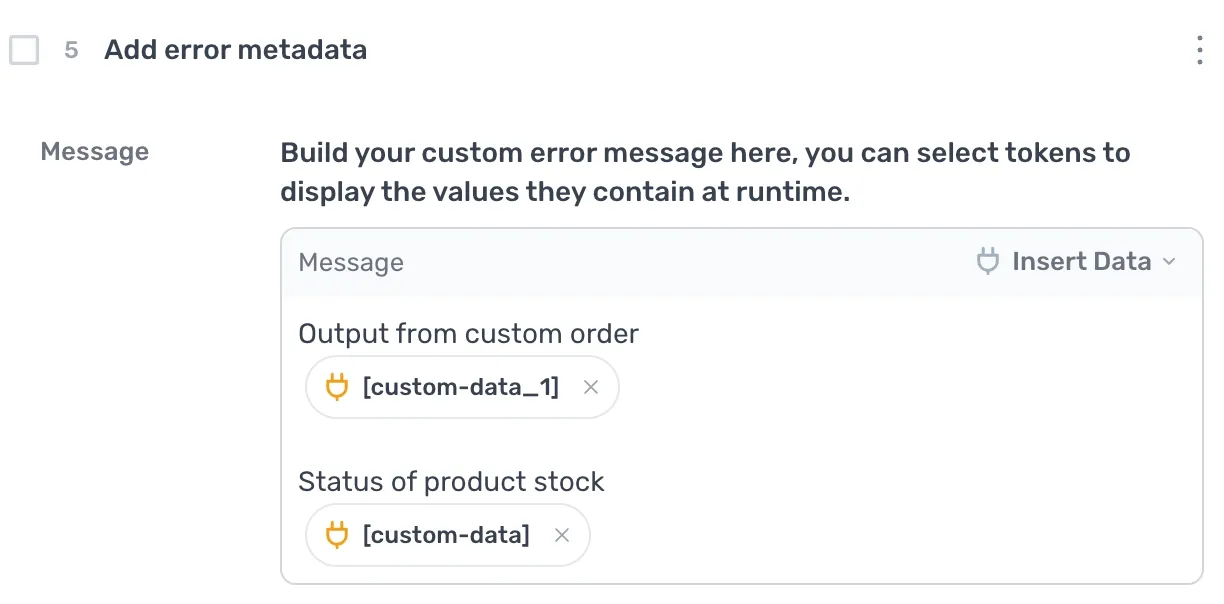
- Add an Add error metadata step before the steps that fail. In a loop, make it the first step inside the loop so it picks up each row in turn.
- In
Message, write what you want to see in the report. Click Insert data to add tokens, for example the current row as[google-sheet-data].
A message such as Row: [google-sheet-data] is enough to find the row in the sheet. The message is cut at 5,000 characters.
The step does nothing on its own. When a later step fails, its message is added to the error.
Step 2: Turn on notifications
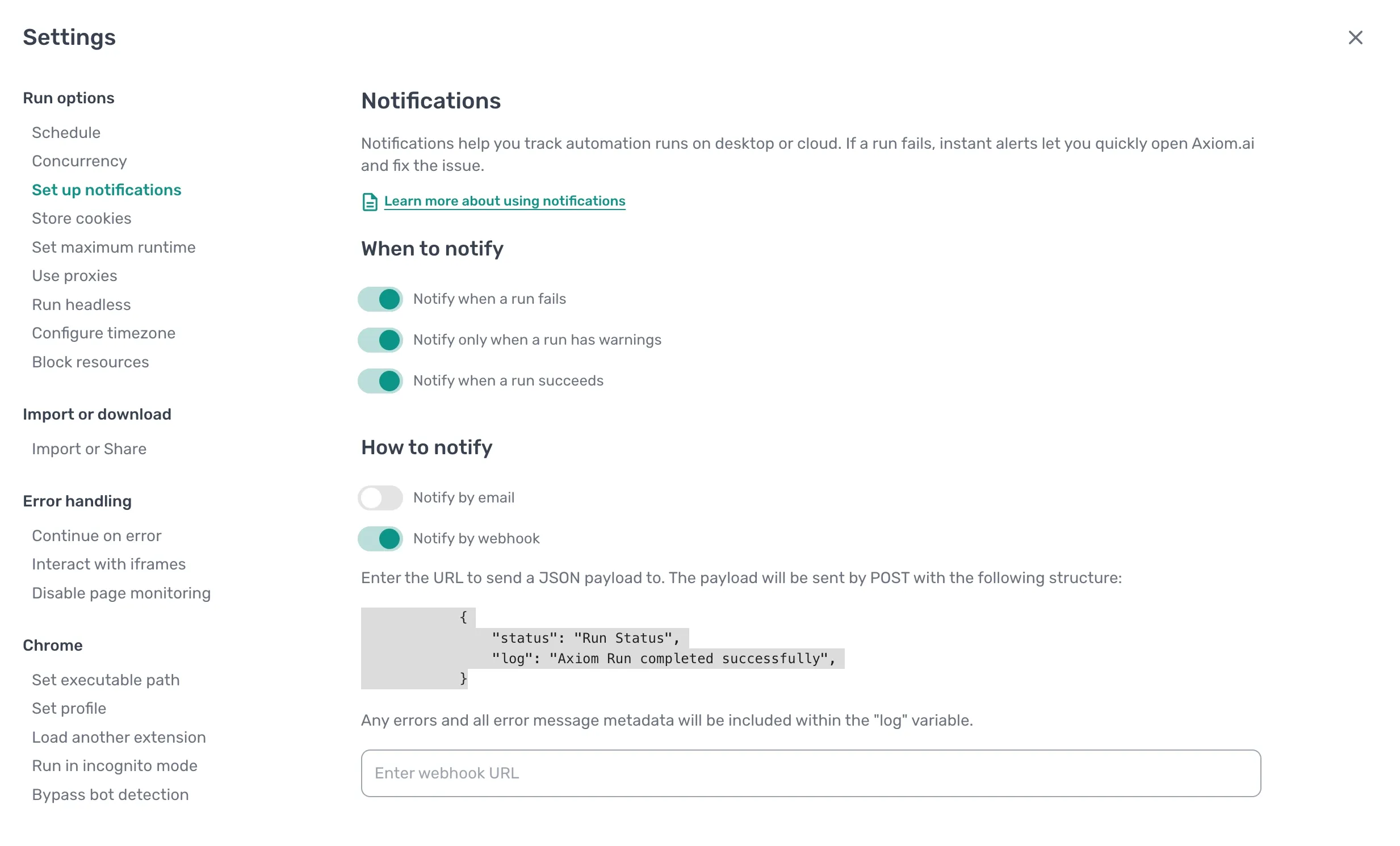
- Click the Cog icon to open the automation's settings, then open Set up notifications under Run options.
- Turn on
Notify when run fails. For an automation with a loop, also turn onNotify when run has warnings, because a failed row is a warning. - Choose
Notify by emailorNotify by webhook.
The email body holds the errors and the metadata. The webhook POST body is JSON with status and log, and the errors and metadata are in log. A Slack workflow can read the same payload: see the Slack guide.
Step 3: React to the failure with Try / Catch
Try / Catch lets the automation do something when a step fails, such as writing the failed row to an "Errors" tab, waiting and retrying, or moving on.
- Add a Try / Catch step inside the loop, after the Add error metadata step. Move the steps that fail into its Try branch.
- In the Catch branch, add what should happen. To keep a record, add a Write data to a Google Sheet step to an "Errors" tab with
DATAset to the row token and[error-message], the text of the error.
Note: An error the Catch branch handles is not reported. It is not a warning, the run does not fail, and the metadata is not added to it. Record it in the Catch branch with
[error-message]. Leave Try / Catch out when a notification is all you need.
Example: a scrape that reports the row it failed on
A sheet lists product URLs. The automation visits each one and scrapes the page. The automation has Notify when run has warnings turned on in its notification settings.
- 1.0
Read data from a Google Sheet: the product sheet, tabProducts. - 2.0
Loop through data: loops over[google-sheet-data]. - 2.1
Add error metadata:Messageis Row:[google-sheet-data]. - 2.2
Go to page: the URL column of the current row. - 2.3
Get data from bot's current page: the fields to scrape, output as[scrape-data]. - 2.4
Write data to a Google Sheet: tabResults,DATAis[scrape-data], Add to existing data.
If a page fails to load, the run moves on to the next row and finishes as Completed with warnings. With Notify when run has warnings on, you get one email or webhook listing each failed row: the step that failed, the error, and the row's data from the metadata step. The rows that worked are in the Results tab.
Tips
- Context for the whole run. An Add error metadata step at the start of the automation adds its message to any error in the run. One at the top of a loop refreshes the row each time round.
- Ignore a step's errors. A step with continue on error turned on records its error as a warning and the run carries on, outside a loop as well as inside one.
- See what the browser did. When the message does not explain a failure, turn on run recording: see record a run.