eBay scraper: count search results in Google Sheets
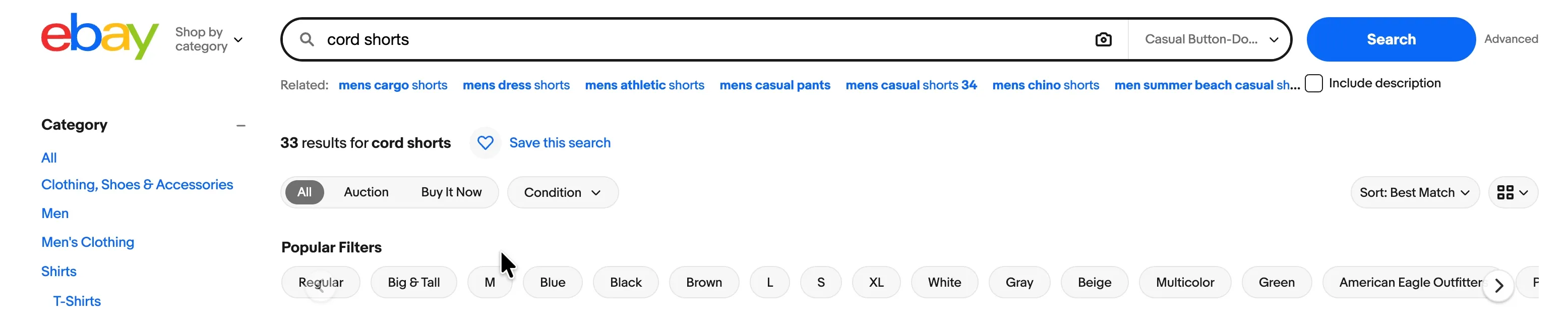
This autoamtion scrapes eBay search result counting. Every eBay search shows a total at the top of the page, like "33 results for cord shorts", and that number tells you how many listings compete for a keyword. Collected at scale, it's a way to gauge market saturation before you list, helps spot under-served niches, size up demand across product variations, or track how listing counts change over time. The bot reads a list of eBay search URLs from a Google Sheet, visits each search page in Chrome, scrapes the result count, and writes it back into column B of the same row.
When building this automation, I triggered eBay's Cloudflare bot detection, so turn on the Bypass bot detection setting before you run. Click the Cog icon in the left toolbar, and select Bypass bot detection. This setting works on the cloud or desktop.
Get started: Set up your Google Sheet
Before you configure the bot, prepare the Google Sheet it reads from and writes to:
- Create a new Google Sheet at sheet.new.
- Name it something descriptive, like "eBay search counts".
- In column A, paste one eBay search URL per row. For example:
https://www.ebay.com/sch/i.html?_nkw=sweat+shorts+men+medium&_sop=12 - Leave column B empty. The bot writes the result count for each search there.
The bot matches each URL back to its own row, so keep the URLs in column A and don't reorder the sheet while the bot is running.
Install axiom.ai
If you're a new user, click Install Chrome extension and create a free axiom.ai account.
Once installed, open axiom.ai in Chrome and click New bot, then add the steps below in order.
Build your eBay scraper search count bot in 7 steps
- 1.0
Read data from a Google SheetSpreadsheet: Search for the Google Sheet you created, then click to select it.Sheet name: Choose the tab that contains your eBay search URLs. These are the tabs at the bottom of the spreadsheet.First cell: Optional. The bot reads fromA1if you leave this blank.Last cell: Optional. The bot reads toZZif you leave this blank.
- 2.0
Loop through dataLoop through data: Click Insert data and select[google-sheet-data]. The bot repeats the sub-steps below once for each row in your sheet.Loop through all: Leave this toggled on to process every row.
- 2.1
Go to pageEnter URL: Click Insert data and select[google-sheet-data?*&0]. This pulls the eBay search URL from column A of the current row, so the bot visits a new search on every loop.
- 2.2
Get data from bot's current pageSelect: With an eBay search page open, click Select data and choose the result count. It's the bold number in the "X results for …" header at the top of the results list. If the visual selector doesn't pick it up cleanly, use this custom CSS selector:[class*="center-top"] h1 .BOLD:first-child. This selector worked at the time of writing, but eBay updates its page layout from time to time, so it may need re-selecting.Find pager (if any): Leave blank. You only need the count from the first page.Max results: Enter1. The bot scrapes a single value per page, and a higher number slows the scraper down.
- 2.3
Replace textData to replace words:[scrape-data], the result count scraped from the eBay page.Text to replace: Enter,to strip the thousands separator, so "1,234" becomes "1234".Replace with: Leave this empty to remove the commas entirely.
- 2.4
Find row in a Google SheetSpreadsheet: Select the same Google Sheet you chose in step 1.0.Sheet name: Choose the same tab that holds your search URLs.Values (comma separated): Click Insert data and select[google-sheet-data?*&0]. The bot searches the sheet for the current row's URL and returns its row number.Exact match: Leave unchecked to allow partial matches.Value matching mode: Leave set to any. The row matches if any value is found.Columns (optional): Optional. Leave blank to search every column, or enter column numbers like1,2to narrow the search.
- 2.5
Write data to a Google SheetSpreadsheet: Select the same Google Sheet again.Sheet name: Choose the same tab.DATA:[scrape-data], the result count to write.Write options: Set the starting cell toB[find-row-google-sheet]. This writes the count into column B of the row the previous step found, keeping each count next to its own URL.Write method: Leave set to Raw. Only choose User Entered if you want to write formulas to the sheet.
Run your eBay scraper search count bot
To test this bot, start it with the desktop runner and let it run a few loops. Stop it and review the data in your linked Google Sheet for accuracy and completeness. To schedule the bot, add login steps.
Customize your bot
You can use the no-code bot builder to adapt this bot to your requirements. Scrape extra fields from each search page, add more replace steps to clean the data, or point it at a different marketplace.
Troubleshooting
- Cloudflare challenge or "Verify you are human" page appears?
eBay's bot detection has been triggered. Turn on the Bypass bot detection setting. Click the Cog icon in the left toolbar of your automation and select Bypass bot detection. This requires the desktop app. - Result count comes back empty?
InStep 2.2 – Get data from bot's current page, the scraper targets the results header on eBay's search page. This guide uses the custom selector[class*="center-top"] h1 .BOLD:first-child, which worked at the time of writing, but eBay changes its page layout from time to time and the selector may stop matching. If that happens, open an eBay search page and re-select the result count element, or update the custom CSS selector to match the new layout. Also check that Max results is set to1. This bot only needs the single count value per page. - Counts written to the wrong row?
InStep 2.4 – Find row in a Google Sheet, the bot matches the current URL against your sheet. If two URLs are very similar, turn on Exact match so a partial match doesn't return the wrong row number. - Counts include commas or extra text?
InStep 2.3 – Replace text, confirm Text to replace is set to,and Replace with is empty. Add further replace steps if you want to strip text like "results". - Want the count written to a different column?
InStep 2.5 – Write data to a Google Sheet, change the letter in the starting cell. It's set toB[find-row-google-sheet], which writes to column B of the matched row. To write to column D instead, change it toD[find-row-google-sheet]. Keep the[find-row-google-sheet]token in place, as that's what lines the count up with the right row. - Bot stops before visiting every URL?
InStep 1.0 – Read data from a Google Sheet, check that your URLs sit in a single continuous column with no blank rows, and that the sheet name matches the tab that holds your data. We offer excellent customer support. If you need help, get in touch.