How to scrape Google Transparency reports
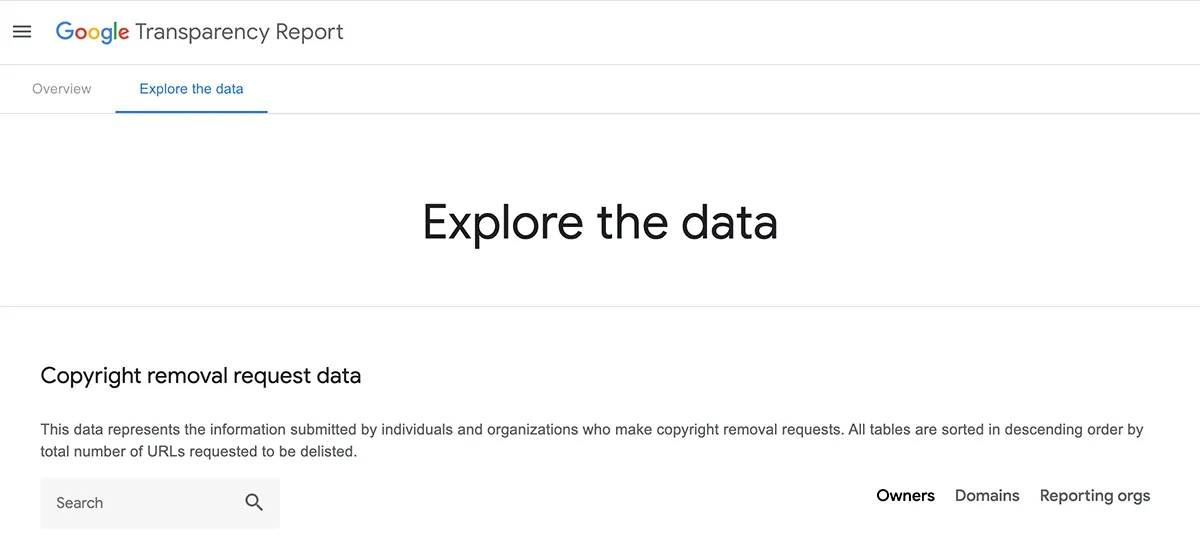
The Copyright section of the Google Transparency Report provides users insights into URLs removed from Google Search due to copyright infringement. It's possible to scrape and extract information about the flagged content, the entities requesting removal, and the reasons for delisting.
In this guide, you'll learn how to scrape copyright data from these reports into a Google Sheet using two web scrapers:
- The first web scraper will input search terms, extract links to "Copyright Owners", and save them to a Google Sheet.
- The second web scraper will process the extracted links by visiting the pages, extracting data for "Specified Domains" and "Reporting Organizations," and writing this information into the same or another Google Sheet.
Click to download the first and second template featured in this guide. This template was correct at the time of creation but may require updating or customization to suit your specific use case. If you’re unsure how to upload it, watch this video.
Getting started
To begin, create a Google Sheet and add search terms to input into the "Search" field.
- 1. Create a new Google Sheet: If you're logged into Google, type
sheet.newin your browser to quickly create a new sheet. - 2. Set up tab one: Add your search terms to the first tab.
- 3. Set up tab two: Name this second tab "Copyright Owners."
- 4. Set up tab three: Name this third tab "Domain and Reporting Data."
How to build a web scraper to extract 'copyright owners'
This web scraper extracts data from the Copyright Removal Request Data search page. The bot inputs search terms and extracts links to "Copyright Owners," saving them to a Google Sheet. To get started, open axiom.ai and click "New automation" to use the no-code bot builder for creating the Google scraper. Then, click "Add first step" to begin.
Download the template we created for this scraper. Click to learn how to upload it.
- 1.0
Read data from a Google SheetSpreadsheet: Search for the Google Sheet you created in the "Spreadsheet" field. Once found, click to select.Sheet name: Choose a sheet tab or leave blank to use the first tab.
- 2.0
Go to pageEnter URL: Insert this URL.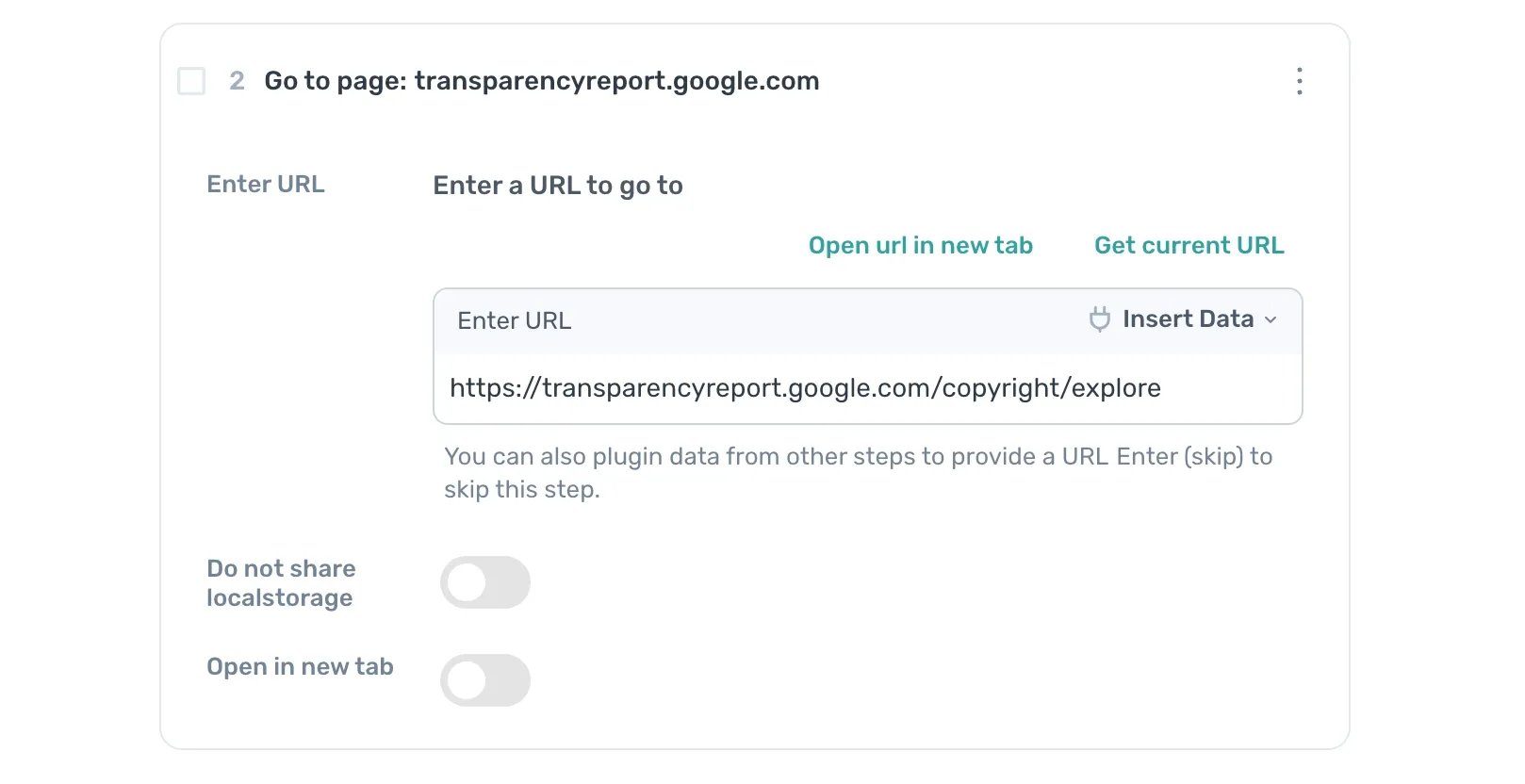
- 3.0
Loop through dataLoop through data: Click 'Insert Data' and selectgoogle-sheet-data. The loop step will now iterate through the URLs in the Google Sheet.
- 3.1
Enter TextText: Click 'Insert Data' and selectgoogle-sheet-datato pass the search term from the sheet.Select column: Choose column 'A' in the preview.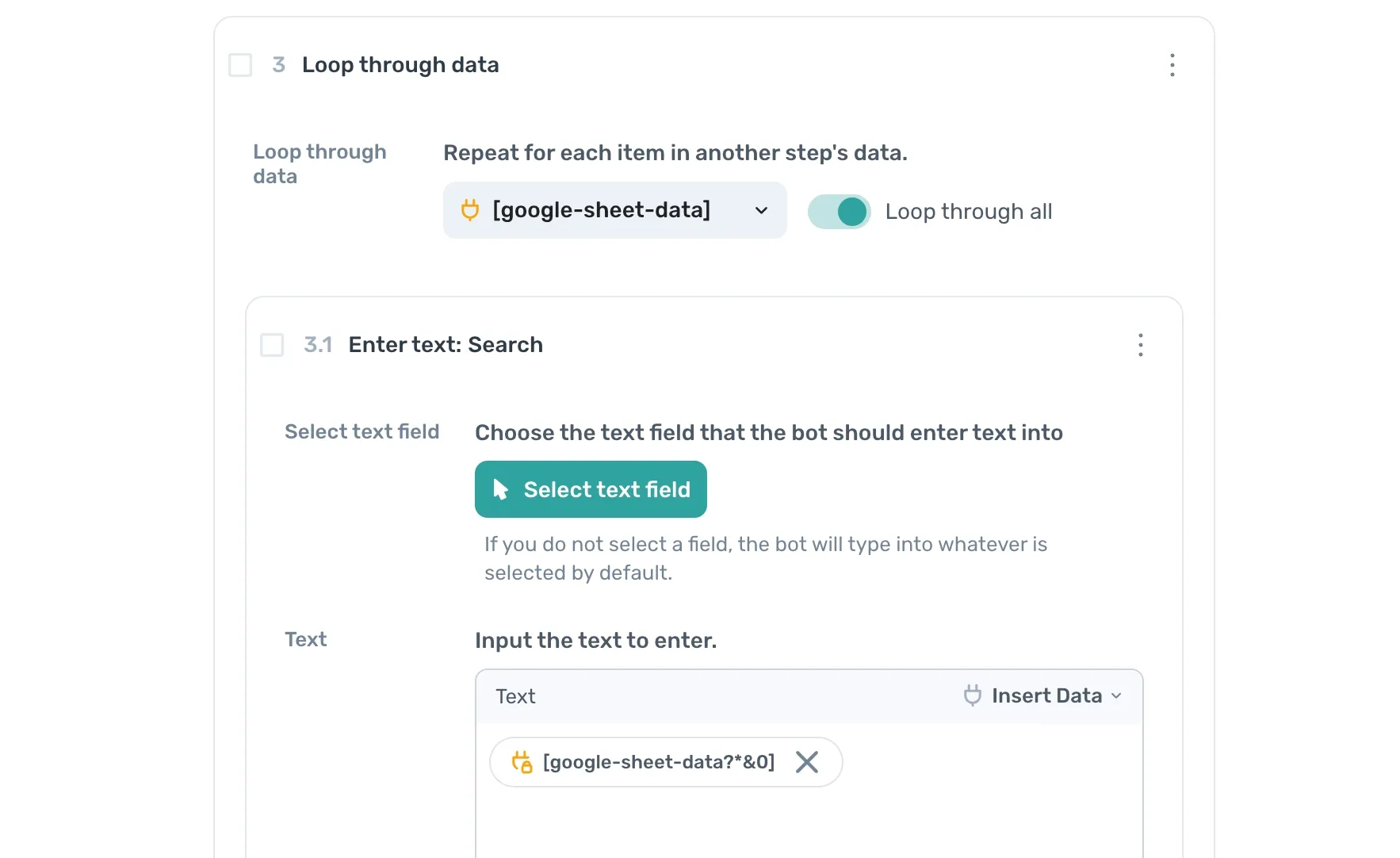
- 3.2
Press Key(s)Key: Press 'Record', then 'Return'.
- 3.3 `