Automate 2FA login for your Instagram bot
Instagram asks for a 6-digit code from an authenticator app every time you sign in from a new browser, and a cloud run is a new browser every time. Save your Instagram login and its authenticator key as a credential once, and two steps sign in and enter the code on their own, so the automation runs unattended in the cloud.
This guide sets that up. The login goes at the start of any Instagram automation, such as sending DMs or scraping a hashtag. The worked example is at the end.
Before you begin
- An Instagram account with two-factor authentication turned on, or one you are about to turn it on for. Use a dedicated account for automation rather than your main one.
- The authenticator app code for that account must come from an authenticator app (Google Authenticator, 1Password, Authy). Codes sent by SMS or email are a different method; see Log in with 2FA.
- The key Instagram shows when you set the app up. If 2FA is already on and you no longer have the key, turn the authentication app method off and on again to get a new one.
Step 1: Copy the authenticator key from Instagram
When you add an authentication app, Instagram shows a QR code and the key behind it. axiom.ai needs that key. It is the same secret your phone's app holds, so axiom.ai produces the same codes.
- On Instagram, open Settings, then Accounts Center, then Password and security, then Two-factor authentication and pick the account.
- Choose Authentication app.
- Instead of scanning the QR code, click Copy key (on some screens it reads Enter the key manually), and keep the key somewhere safe for the next step.
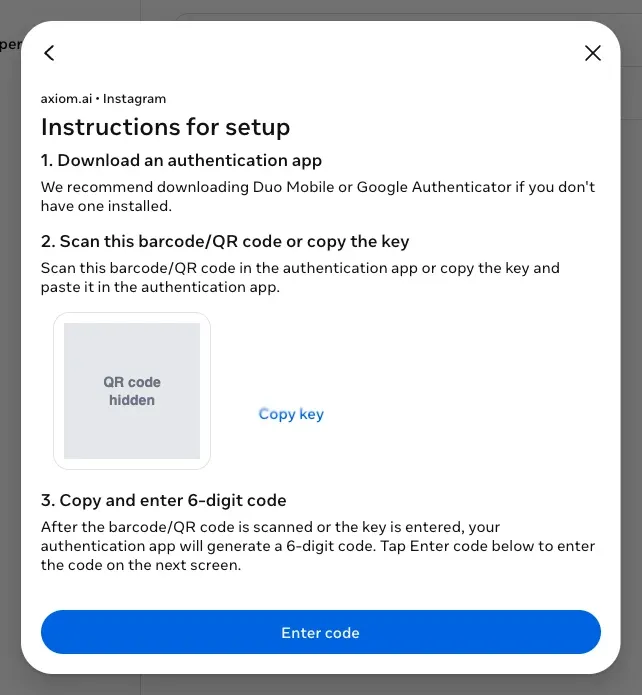
- Finish Instagram's setup by entering a code from your phone's app, so Instagram accepts the method. Copy the key before you do this: a key Instagram shows again later may not match.
Note: Scan the same QR code with your phone as well, so your app keeps working alongside axiom.ai.
Step 2: Save the login as a credential
- In the axiom.ai dashboard, open Login credentials in the sidebar and click Add.
- Set
Providerto Axiom. - Set
Referenceto a name you will recognise in the step picker, for example Instagram (automation). - Enter the account's
Username / emailandPassword. - Paste the key from step 1 into
2FA secret. - Save.
The list shows the credential as "Username stored", "Password stored" and "2FA stored". The values are never shown again, and they never go into the automation. The steps fetch them at run time.
Note: The
2FA secretfield is only shown while you add the credential. If you need to change it later, edit the credential and paste the key again.
Step 3: Build the login
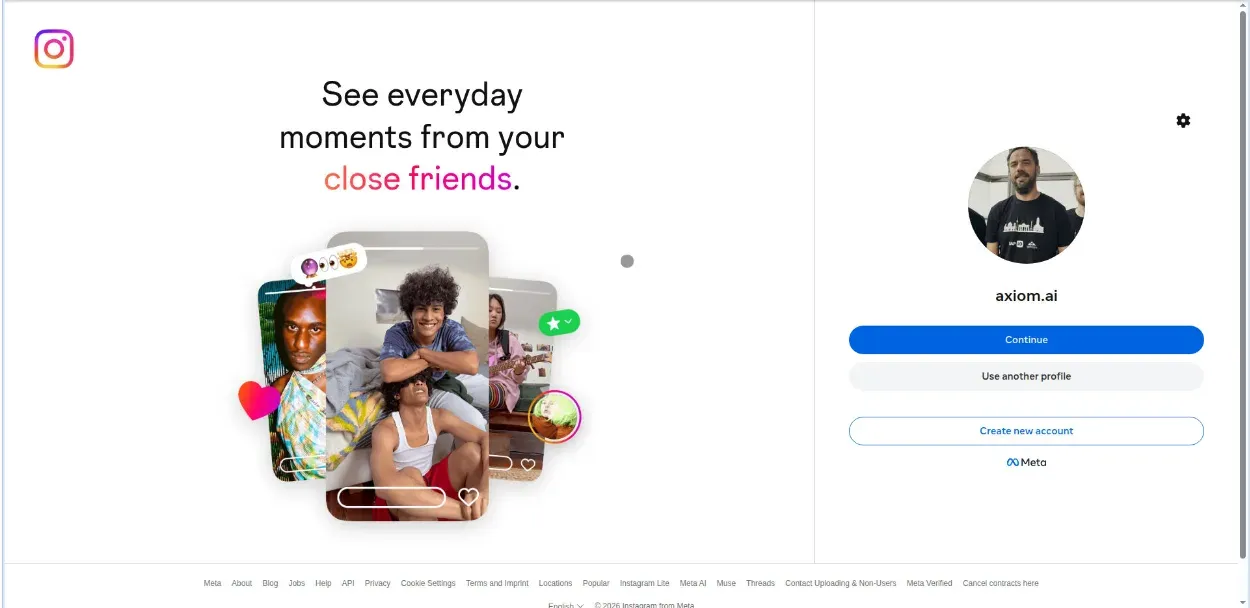
- Add a Go to page step with the URL https://www.instagram.com/accounts/login/. Turn on
Store Cookie, so later runs can reuse the session Instagram remembers (see the tips below). - If Instagram shows a cookie window before the login form (it does in the UK and the EU), add a Click element step for its Decline optional cookies or Allow all cookies button. Skip this step if your runs never see the window.
- Add a Log in with credentials step. In
Credentials, pick the credential you saved. Use the selector tool to pick the username box forUsername fieldand the password box forPassword field. - Add a Click element step for the Log in button. If the selector tool struggles with it, click
Select, then Custom, tick Use element text instead of HTML, type Log in and click Complete. - Add a Wait step of 3000 milliseconds. Instagram takes a moment to show the code page.
- Add a Generate authenticator code step and pick the same credential. It outputs the current code as the
[totp-code]token. - Add an Enter text step. Select the security code box, and for
Textclick Insert data and choose[totp-code]. Leave the step's typing delay at its default; Instagram wants the digits typed one by one. - Add a Click element step for the Confirm button.
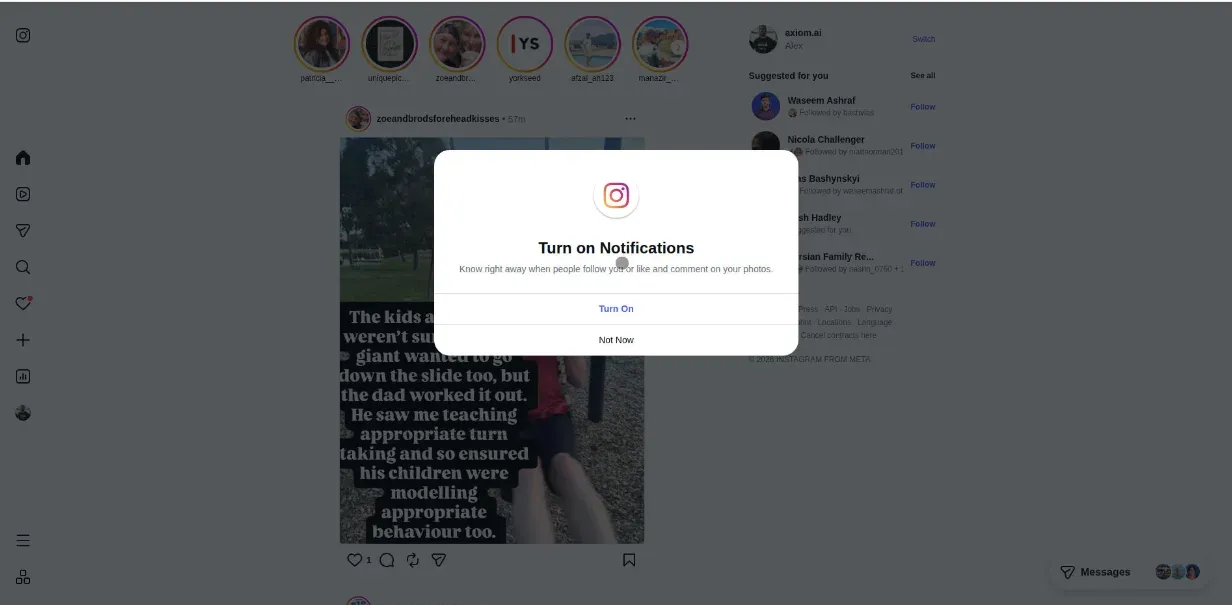
After the code, Instagram often asks whether to save your login info and whether to turn on notifications. Add a Click element step for Not now for each prompt the account gets, matched by its text with Optional click on (see automate closing cookie windows, notification prompts and pop-ups), with a short Wait before it. Then add the steps for whatever the automation does on Instagram.
Step 4: Run it and watch
Run the automation in the cloud and watch the live view. The run opens the login page, fills the username and password, clicks Log in, waits, types the code, confirms, and lands on the feed. If it stops at the code page, check the key in the credential and that the Enter text step types [totp-code] into the right box.
Example: the Instagram login
The login on its own. Step 2.0 closes the cookie window and steps 9.0 and 10.0 handle Instagram's two prompts after sign-in. Drop the ones your runs do not meet.
- 1.0
Go to page: https://www.instagram.com/accounts/login/,Store Cookieon. - 2.0
Click element: the cookie window's Decline optional cookies button, if the window appears. - 3.0
Log in with credentials:Credentialsis Instagram (automation),Username fieldis the username box,Password fieldis the password box. - 4.0
Click element: the Log in button. - 5.0
Wait: 3000 milliseconds. - 6.0
Generate authenticator code:Credentialsis Instagram (automation), output as[totp-code]. - 7.0
Enter text: the security code box,Textis[totp-code]. - 8.0
Click element: the Confirm button. - 9.0
Click element: Not now on the save login prompt. - 10.0
Click element: Not now on the notifications prompt.
Tips
- Skip the code on later runs. With
Store Cookieon the Go to page step, later cloud runs reuse the signed-in session and skip the code page until the cookie expires. See storing cookies. - One credential, many automations. Every Instagram automation can use the same saved credential. Change the password in one place and they all keep working.
- Codes are time-based. The step waits for a fresh code when the current one is about to expire, so a code is never typed in its last seconds.
- A different check from Instagram. If Instagram asks for a code sent by email or SMS, or shows an "unusual login" screen, the authenticator steps can't answer it. See codes sent by SMS or email, or run the first login attended on the desktop app so Instagram learns the browser, then switch to the cloud.