Fill a date picker in a Google Form
Google Forms date fields are custom inputs, so the Enter text step can't fill them reliably. This guide shows you how to fill one using a small JavaScript snippet and the Press key(s) step instead.
Why Enter text doesn't work
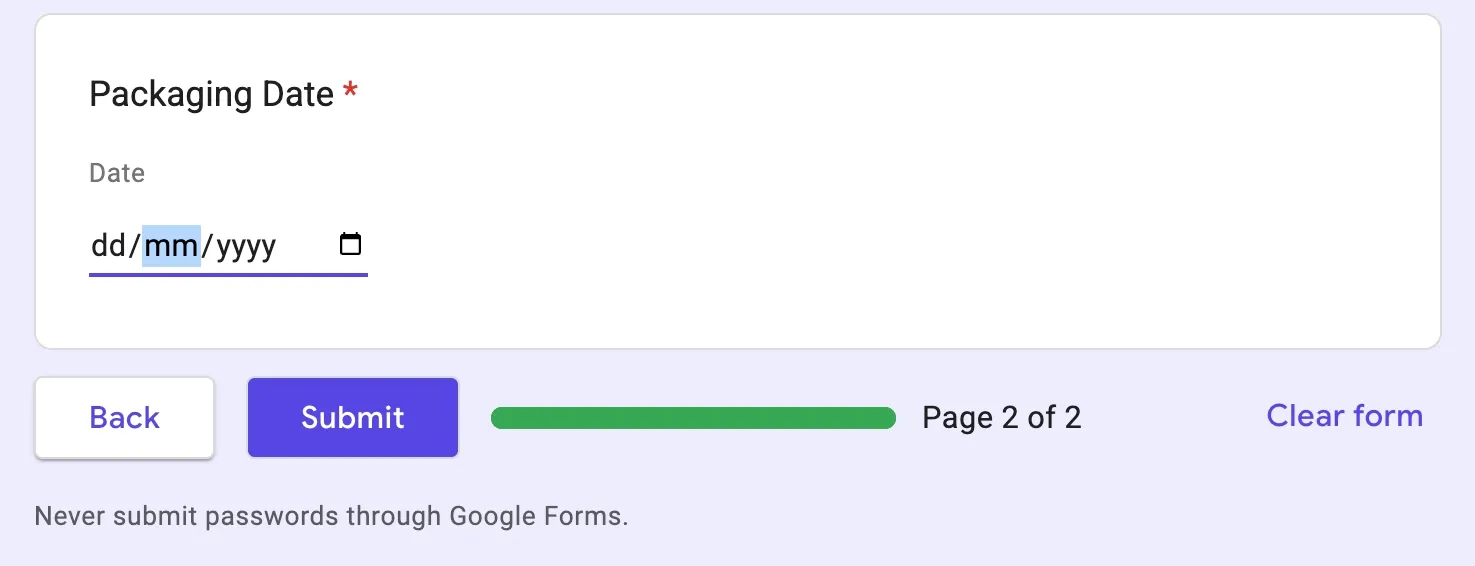
The date field looks like a single input, but it's made of three parts: day, month, and year. This causes two problems for Enter text:
- Clicking the field can place the cursor in the day, month, or year part, so the automation can't be sure where typing starts.
- The field doesn't accept a full date pasted as one string, such as
12-12-2025. Each part has to be typed in order: day, then month, then year.
The fix is to skip clicking entirely. Tab into the field so the cursor always starts in the day part, then type the date one digit at a time.
Before you begin
- Your automation already fills the field before the date picker, for example with an Enter text step. Tabbing from that field is what places the cursor correctly.
- Your date is available as data, for example from a Read data from a Google Sheet step, in
DD-MM-YYYYformat such as12-12-2025.
Step 1: Reformat the date with JavaScript
The Press key(s) step types individual keys, so the date needs to be broken into single digits separated by the || delimiter.
- Click Add step and search for Write javascript.
- Select the Write javascript step to add it after the step that reads your date.
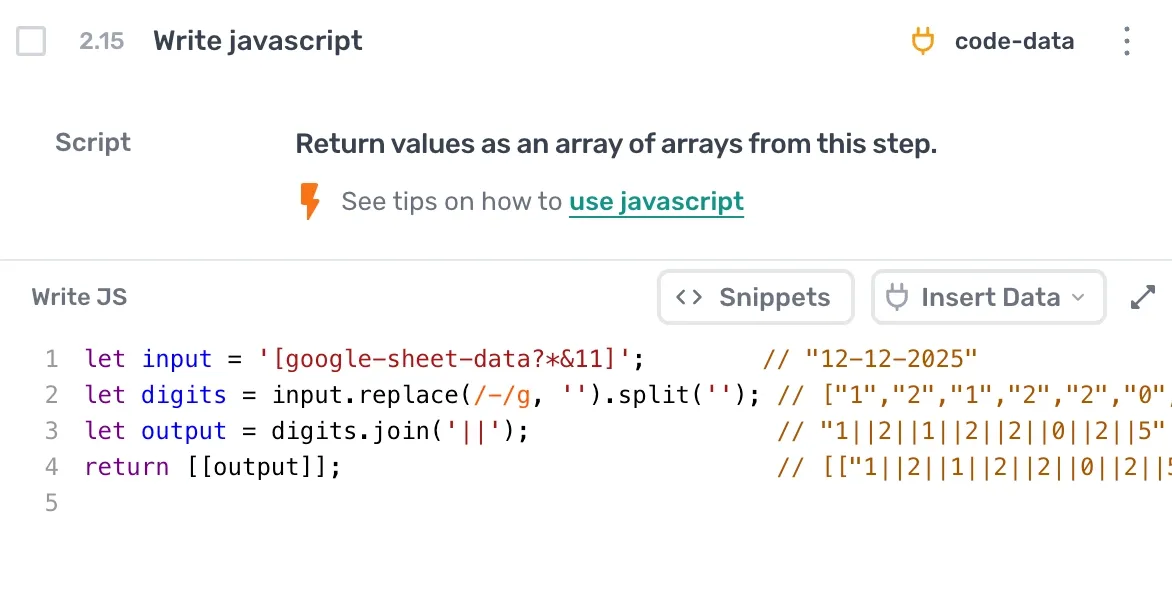
- Paste the following code, replacing the token with your own data token:
let input = '[google-sheet-data?*&11]';         // "12-12-2025"
let digits = input.replace(/-/g, '').split(''); // ["1","2","1","2","2","0","2","5"]
let output = digits.join('||');                 // "1||2||1||2||2||0||2||5"
return [[output]];                              // [["1||2||1||2||2||0||2||5"]]
The step strips the dashes, splits the date into single digits, and joins them with || so each digit is typed as its own key press.
Note: If your date uses a different separator, such as
/, change thereplace(/-/g, '')line to match it.
Step 2: Tab into the date field
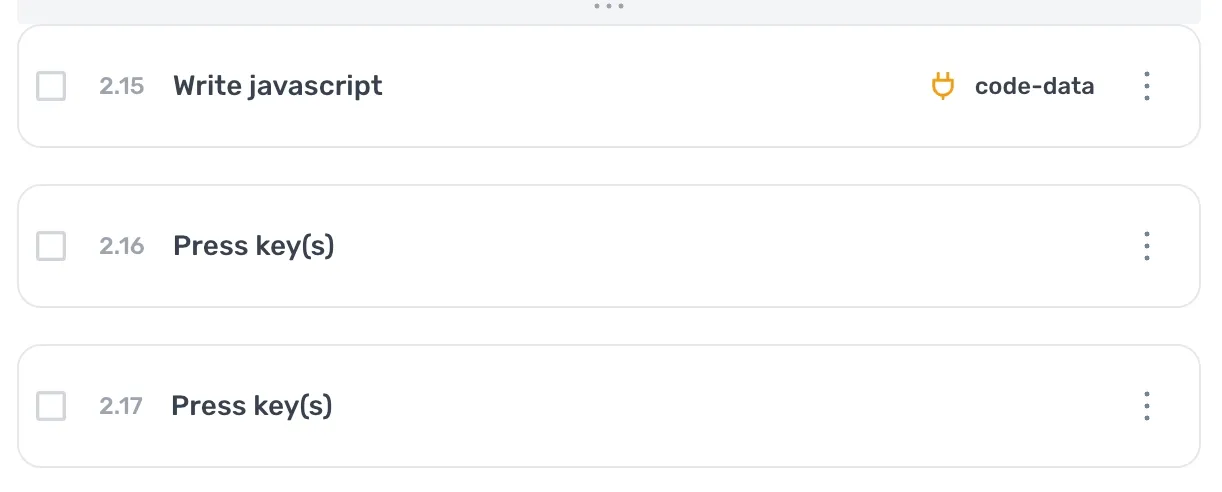
- Click Add step and search for Press key(s).
- Add the Press key(s) step directly after the step that fills the previous form field.
- Record a single Tab key press.
Tabbing from the previous field moves focus into the date field with the cursor in the day part, so typing always starts in the right place.
Step 3: Type the date
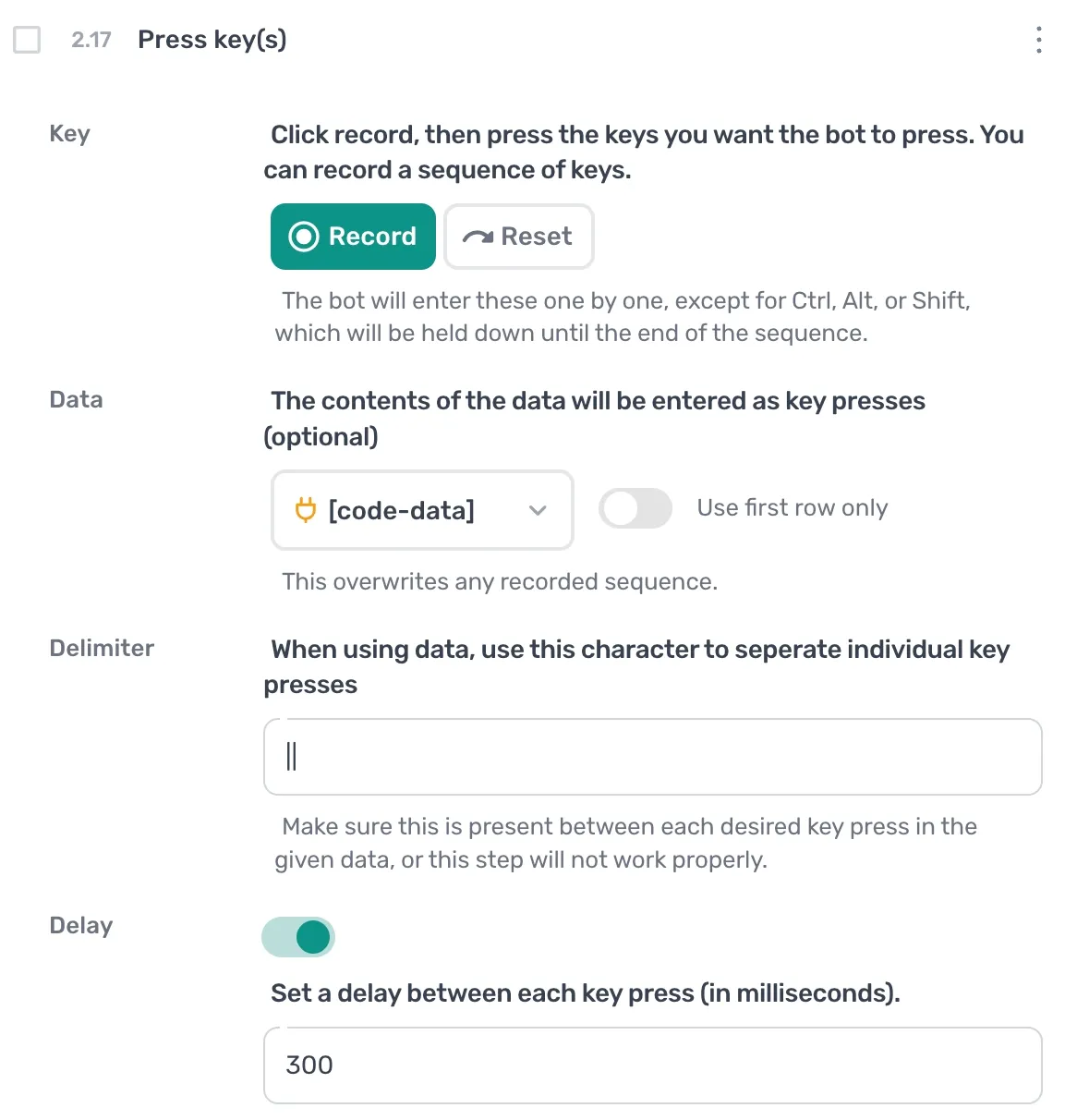
- Add a second Press key(s) step directly after the Tab step.
- Pass in the data token from your Write javascript step as the keys to press.
When the automation runs, the digits are typed in order: day, month, then year. The date field fills correctly every time.
Note: Type the digits in the order the field expects. This example is for a
dd/mm/yyyyfield. If the form showsmm/dd/yyyy, reorder the parts in the JavaScript step first.
If the problem persists
Contact support or ask a question in our Reddit community.