How to export a web page as PDF
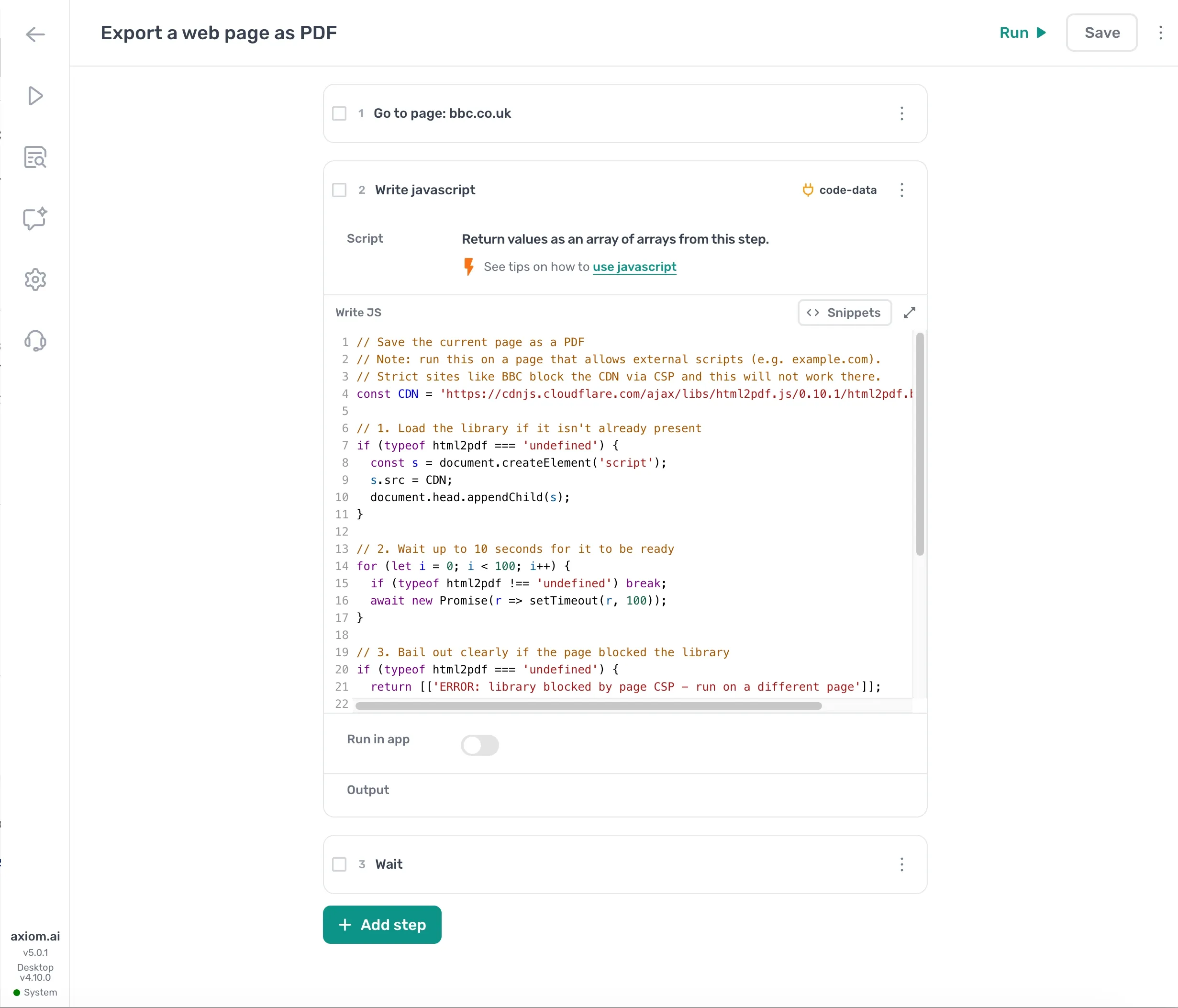
Automations work inside the page itself, so they can't open Chrome's print dialog or use the browser's built-in save-as-PDF. There's a workaround: generate the PDF inside the page with a Write javascript step and the html2pdf.js library. This guide shows the three-step setup, plus two alternatives: the built-in screenshot steps when an image of the page is enough, and the Chrome API when you want true print-to-PDF from code.
Before you begin
- The target page must allow external scripts. Sites with a strict Content Security Policy (the BBC, for example) block the html2pdf.js library, and the export fails with a clear error instead of a PDF.
- The PDF downloads through the browser. Run the automation locally so the file lands in your Chrome downloads folder.
Step 1: Go to the page
- Add a Go to page step.
- Enter the URL of the page you want to export.
Step 2: Generate the PDF
- Add a Write javascript step after Go to page.
- Paste the following code into the step.
// Save the current page as a PDF
// Note: run this on a page that allows external scripts (e.g. example.com).
// Strict sites like BBC block the CDN via CSP and this will not work there.
const CDN = 'https://cdnjs.cloudflare.com/ajax/libs/html2pdf.js/0.10.1/html2pdf.bundle.min.js';

// 1. Load the library if it isn't already present
if (typeof html2pdf === 'undefined') {
  const s = document.createElement('script');
  s.src = CDN;
  document.head.appendChild(s);
}

// 2. Wait up to 10 seconds for it to be ready
for (let i = 0; i < 100; i++) {
  if (typeof html2pdf !== 'undefined') break;
  await new Promise(r => setTimeout(r, 100));
}

// 3. Bail out clearly if the page blocked the library
if (typeof html2pdf === 'undefined') {
  return [['ERROR: library blocked by page CSP - run on a different page']];
}

// 4. Generate and download the PDF
await html2pdf()
  .set({
    margin: 10,
    filename: 'demo.pdf',
    jsPDF: { unit: 'mm', format: 'a4', orientation: 'portrait' }
  })
  .from(document.body)
  .save();

return [['done']];
The code loads html2pdf.js from a CDN, waits for it to be ready, then renders the page body as an A4 PDF and downloads it. If the page blocks the library, the step returns ERROR: library blocked by page CSP - run on a different page instead of failing silently.
To change the file name, edit the filename value. To switch to landscape, change orientation to landscape.
Step 3: Wait for the export
The PDF generates asynchronously, so give it time to finish before the automation moves on.
- Add a Wait step after Write javascript.
- Set it to 2000 to 3000 milliseconds. For large or image-heavy pages, wait longer.
Limitations
- Strict sites block the library. Pages with a strict Content Security Policy refuse the CDN script. The step returns the
ERRORtext above. There's no workaround on that page; export a different page or source. - The output is a rendering, not a print. html2pdf.js redraws the page into the PDF. Complex layouts, fixed headers, and some fonts can look different from Chrome's own print output.
- Very long pages take longer. Increase the Wait step's duration if your PDF comes out truncated or the download doesn't appear.
Does it have to be a PDF?
Often it doesn't. If you need a record of what the page looked like rather than a document file, the built-in screenshot steps do the same job with no code and no risk of being blocked:
- Save screenshot locally saves an image of the page to your computer.
- Save screenshot to Google Drive saves it to a Drive folder instead.
Use the JavaScript workaround when the output genuinely has to be a PDF: archiving, invoices, or uploading to a system that only accepts PDF files.
Export with the Chrome API
If you're comfortable with code, the Chrome API sidesteps the limitation entirely. The Chrome DevTools Protocol includes native print-to-PDF, so a script connected to a cloud browser can produce the same PDF the print dialog would. Nothing is injected into the page, so strict Content Security Policies don't affect it.
const puppeteer = require("puppeteer");

const browser = await puppeteer.connect({
  browserWSEndpoint: "wss://cdp-lb.axiom.ai/?token=YOUR_API_KEY"
});

const page = await browser.newPage();
await page.goto("https://example.com", { waitUntil: "networkidle0" });
await page.pdf({ path: "page.pdf", format: "A4" });

await browser.close();
This produces true print-quality output and works on pages that block the html2pdf.js library. Generate an API key in the Code Dashboard to try it.
Next steps
- Save the raw page instead with Save page HTML.
- Browse all the no-code Steps to see what else you can automate.
- Read the Chrome API guide for session lifecycle and limits.