Automate closing cookie windows, notification prompts and pop-ups
A cookie window, a "turn on notifications" prompt, a newsletter box or a "save your login" dialog often appears in a cloud run that you never see on the same site. The cloud browser starts with no cookies and no login, it may be in a country where the site has to ask, and the site treats it as a first visit. If the automation does not expect the dialog, its next click lands on the overlay and the run fails. One optional click after the page opens handles it, whatever the dialog is.
Before you begin
- An automation with a Go to page step, or a step after which the dialog appears, such as a login.
- The text of the button that closes the dialog, as it reads on screen: Accept all, Reject all, Not Now, No thanks, Dismiss or Close.
Step 1: Add an optional click that presses the button by its text
- Directly after the step the dialog appears on, add a Click element step. For a cookie window that is the Go to page step. For Instagram's notifications prompt it is the login.
- Click
Selectto open the selector tool, then click Custom in its toolbar. - Tick Use element text instead of HTML and type the button's label into the field, for example Not Now.

- Click Complete. Matching by text works whichever cookie provider or site built the dialog, because the label is what you see rather than a class that changes.
- Turn on
Optional click. If the dialog does not appear in a run, the step is skipped without an error and the automation continues.
The dialog is closed when it shows and ignored when it does not. The steps after it work on the page as normal.
Note: For cookies, rejecting usually keeps the site simpler on later pages. Accept them when the site needs them to work. For notification prompts, Not Now is the answer: a cloud browser cannot receive notifications.
Example: Instagram's notifications prompt
After signing in, Instagram shows this over the feed. The automation's next click would land on it.
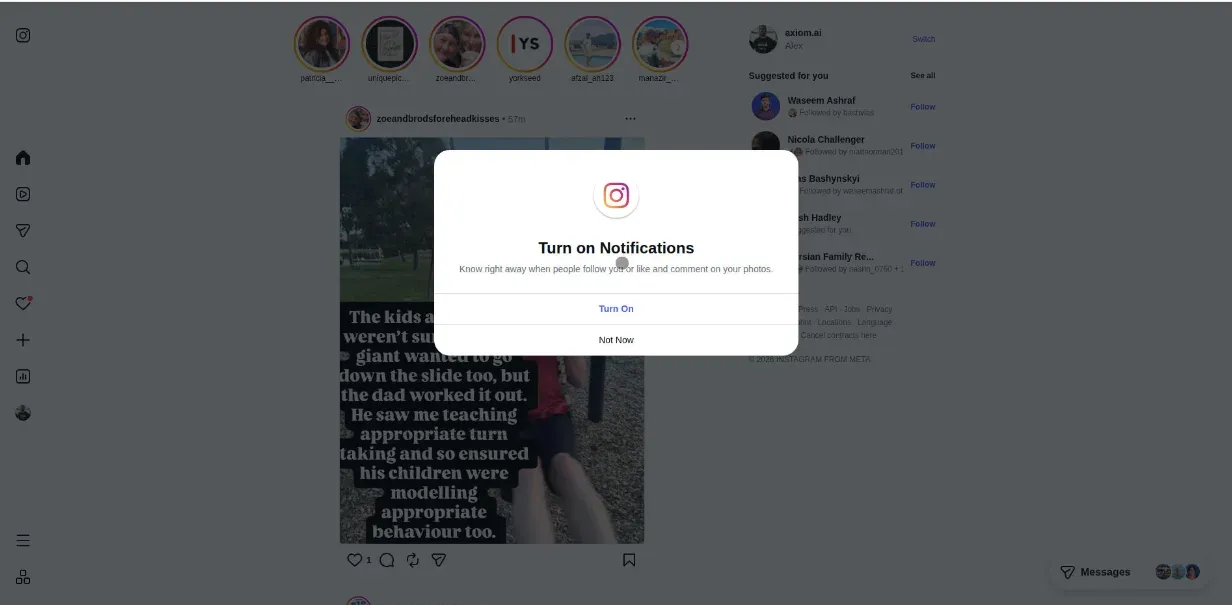
A Click element step with the text Not Now and Optional click on, placed after the login, closes it. The Instagram 2FA guide has the full login with this step in place.
If selecting by text does not work
- A custom CSS selector. Open the site logged out so the dialog shows, right-click the button, choose Inspect, and copy a stable id or class from it, such as
#onetrust-accept-btn-handler. In the Click element step clickSelect, then Custom, paste the selector into the field with Use element text instead of HTML unticked, and click Complete. KeepOptional clickon. See custom CSS selectors. - Press keys to reach the button. Add a Press key(s) step after the dialog appears with as many Tab presses as it takes to focus the button, then Enter. Count the presses on the site logged out. This breaks if the dialog's layout changes.
- Store the cookie. Turn on
Store Cookieon the Go to page step. After one run has answered a cookie window, later runs keep the site's cookie and are not asked again until it expires. Keep the optional click for when it does. Prompts that a site shows every time, such as notifications, still need the click.
Example: a login page with a cookie window
- 1.0
Go to page: the site's login page,Store Cookieon. - 2.0
Click element:Selectis Custom with Use element text instead of HTML ticked and the text Reject all,Optional clickon. - 3.0
Log in with credentials: the saved login, then the steps the automation is for.