How to trigger a desktop run from Make
A webhook can trigger a run on your own desktop, not just on axiom.ai's cloud. Send the webhook to the /desktop-trigger endpoint and the run starts in the axiom.ai desktop app on your own network, so your data stays on hardware you control while you keep the power of axiom.ai behind it.
This guide shows you how to trigger a desktop run from Make.com and send the data back, building a simple web scraper as the example. What you learn here adapts to any automation you already have.
Getting started
You need:
- A Pro tier subscription or above.
- The axiom.ai desktop app installed, running, and logged into the same account.
- Your API key, found in the Dashboard. See Authentication.
- The exact name of the automation you want to run. It's case-sensitive and whitespace-sensitive.
- A Make account.
Note: The desktop trigger doesn't accept input data. The
dataarray supported by the cloud trigger endpoint isn't available here, so the automation holds its own target URL.
Step 1: Turn on desktop routing for the automation
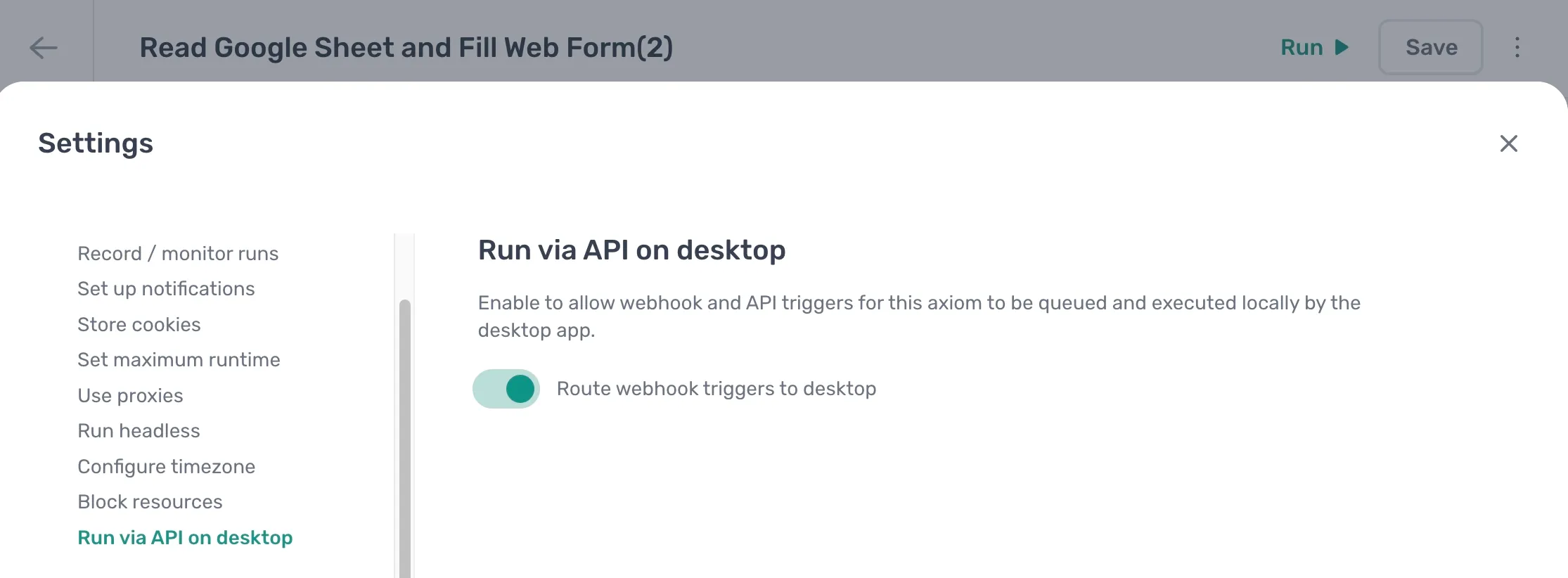
- Open the automation and click the Cog icon in the toolbar on the left.
- Open the Run via API on desktop section under Run options.
- Toggle Route webhook triggers to desktop on.
Until this is on, the endpoint rejects the call with Desktop webhook not enabled for this task. See Automation settings for the rest of the run options.
Step 2: Trigger the run from Make
This scenario queues the run on your desktop. Its trigger can be anything Make offers: a schedule, a new row in a sheet, a form submission, another app.
- In Make, open Scenarios and create a new scenario, or open the one you want to add this to.
- Pick whichever trigger module suits the job.
- Add a module, search for HTTP, and choose Make a request.
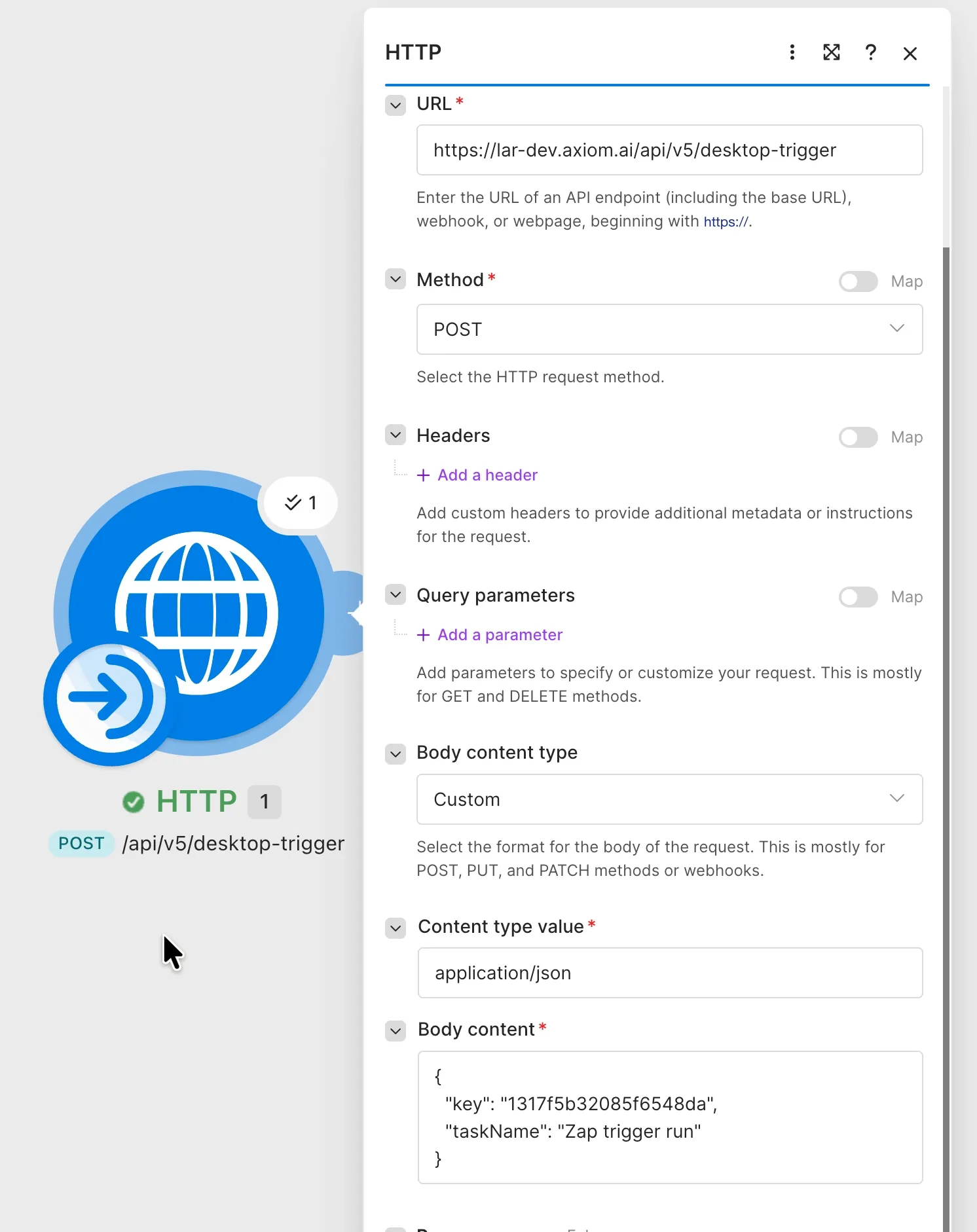
- Set URL to
https://lar.axiom.ai/api/v5/desktop-trigger. - Set Method to POST.
- Set Body type to Raw.
- Set Content type to JSON (application/json). Make sends the matching header for you.
- Paste the JSON below into Request content, with your own key and automation name.
- Save the scenario.
{
  "key": "your-api-key-here",
  "taskName": "My First Automation"
}
The same call in cURL, useful for checking the key and name before you put them in Make:
curl -s -X POST https://lar.axiom.ai/api/v5/desktop-trigger -H "Content-Type: application/json" -d '{"key":"your-api-key-here","taskName":"My First Automation"}'
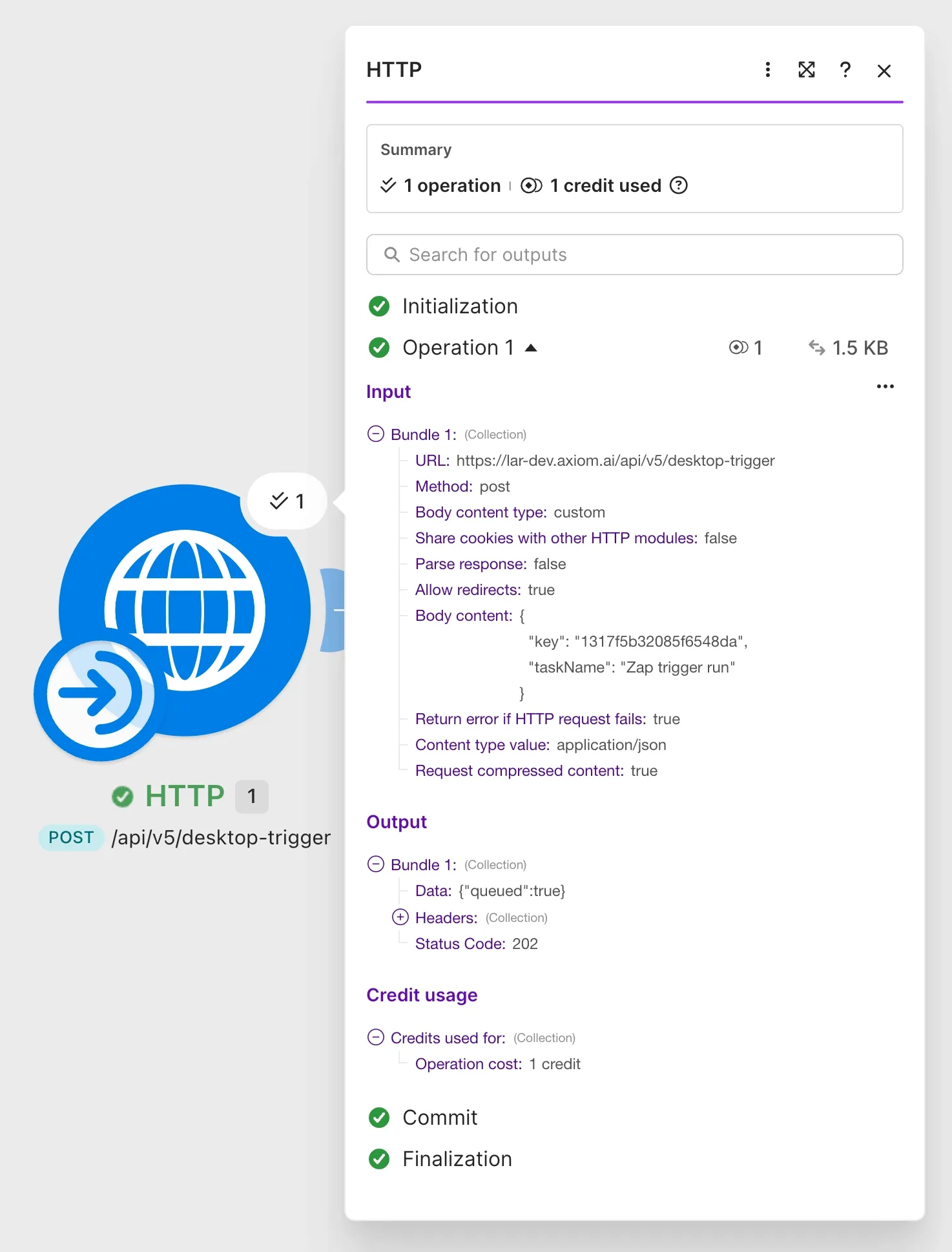
A successful call returns a 202 and this body:
{
  "queued": true
}
Note: Queued means the desktop app has a run waiting, not that the run has started. If the app isn't running when the call lands, the run starts as soon as the app is next online, as long as that happens within 24 hours. After that the trigger expires.
Authentication on this endpoint is body-only. Send key in the JSON body. The X-API-KEY and Authorization: Bearer headers used elsewhere in the API don't work here.
Step 3: Build the scrape
- Add a Get data from a URL step and enter the page you want to scrape.
- Use the selector tool to pick the values you want. The step outputs them as the
[scrape-data]token. - Save the automation and run it once from the Builder to confirm the scrape returns what you expect.
A single scrape keeps the example short, but the middle of this pattern is yours. Add or swap steps to fit the job:
- Add Go to page and Click element steps to reach a page that sits behind a menu or a search.
- Add a Loop through data step to work through a list of URLs instead of one page.
- Log in first if the page needs a session, which is one of the better reasons to run on your desktop at all. See Log in to sites.
- Add a Write data to a Google Sheet step if you want the data filed as well as posted back.
- Read a local file, or drive a locally installed app, since the run happens on your own machine.
Only the last step matters to Make. Whatever you build, finish with the Trigger webhook step in step 4 and whatever token holds your data goes in the payload.
Step 4: Send the data back to Make
Create a second scenario to catch the results, then point the automation at it.
- In Make, create a new scenario and add the Webhooks module.
- Choose Custom webhook.
- Click Add, give the webhook a name, and save it.
- Click Copy address to clipboard. Make now waits for data so it can work out the structure.
Back in the automation:
- Add a Trigger webhook step below the scrape.
- Paste the webhook address into
Endpoint. - Click Insert Data in
Payloadand select the[scrape-data]token. axiom.ai builds the JSON payload for you and posts the data as a 2D array. - Save the automation.
Step 5: Test the loop
- Make sure the desktop app is running and logged in.
- Run the first scenario. The HTTP module should return
{"queued": true}. - Watch the run start in the desktop app.
- When it finishes, the second scenario shows Successfully determined and the scraped data appears in the webhook module's output.
- Add whatever modules you want after it: a spreadsheet row, a database record, a Slack message.
Troubleshooting
| Response | Cause |
|---|---|
Unable to authenticate, you must send an API key. | key is missing from the request body. |
Unable to authenticate, please check your API key and try again. | key doesn't match an active API key. Generate a new one in the Dashboard. |
Missing task name, you must send the name of the task that you wish to trigger. | taskName is missing from the request body. The cloud trigger endpoint calls this field name, so check you haven't carried that habit over. |
404, taskName not found | The name doesn't match an automation in your account. Copy it straight from the Dashboard, since a stray space or capital is enough to break it. |
Desktop webhook not enabled for this task | Step 1 hasn't been done for this automation. |
Triggering automations through the API is not included in the Starter plan. Upgrade to Pro or higher. | The account is on the Starter plan. Triggering needs Pro or higher. |
| An HTML page rather than JSON | You've hit a host that doesn't serve this endpoint. Check the URL. |
Unable to authenticate, you must send an API key. also shows up when the key is present but the body never arrives as JSON, so the server sees an empty request. If the key is definitely right, check Body type is Raw and Content type is JSON (application/json) on the HTTP module.
There's no endpoint for checking a desktop run's status from outside the desktop app. Check the run history in the Dashboard or in the desktop app itself. For the full endpoint reference, see Trigger a desktop run.
Wrapping up
One HTTP module and one webhook module give you a local scrape that any Make scenario can start, with the results landing back in Make a few seconds later. The same pattern covers anything the cloud can't do for you: reading a local file, driving a desktop app, or hitting an internal site. For the cloud version of this loop, which does accept input data, see How to trigger and post data to Make with an axiom.ai automation.