How to use keystrokes as workarounds
When automating a browser, you may need to use workarounds for issues like being unable to select an element. One category of these workarounds includes keyboard shortcuts or hotkeys. These provide alternative methods for actions typically performed with a mouse, such as cutting, copying, and pasting, commonly executed via keyboard.
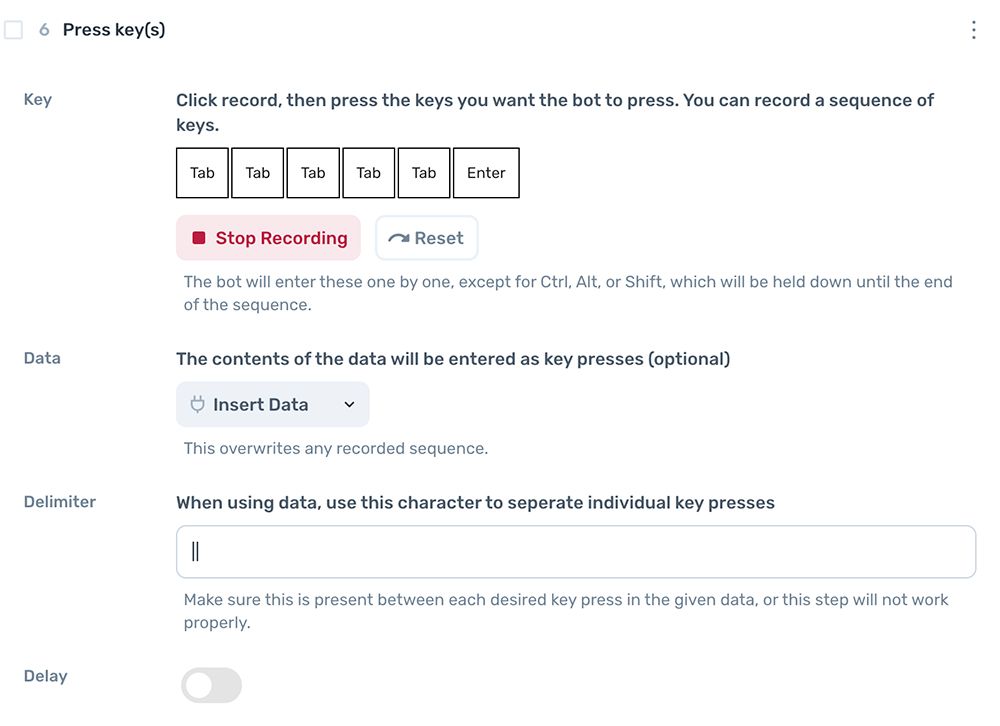
To utilize the power of keyboard shortcuts, you can use the "Press key(s)" step to record and reuse combinations of hotkeys.

How to record keyboard shortcuts with the keypress step
In the axiom.ai builder, open your automation and navigate to the point where you wish to add a new step. Then, open the step finder, search for, and add the "Press key(s)" step. Inside the step, Click record, then press the keys you want the bot to press. You can record a sequence of keys. The bot will enter these one by one, except for Ctrl, Alt, or Shift, which will be held down until the end of the sequence.
Examples of keyboard workarounds
| Keyboard shortcut / hotkey | Examples |
|---|---|
| Up/down arrows | Scroll a page or a box with scrollbars |
| Left/right arrows | Move the cursor left or right in an input field |
| Tab | Tab to move cursor on the page |
| Tab | Tab between fields in a form |
| Tab | In pop up windows tab to select elements |
| Return | Submit message in a chat interface |
| Return | Press a button |
| CV+P | Copy and paste just like a human |
| Delete | Delete values in a text field |
Ensuring the cursor is correctly placed
Sometimes, you must position the mouse cursor so the shortcut works effectively. For instance, to scroll within a box with up/down arrows, you would use a "Click element" step to activate it. Similarly, for an input field, you must ensure the cursor is inside the field by using a "Click element" step.
Wrapping up
Recording keyboard shortcuts is a valuable workaround in browser automation, helping bypass issues. Correct cursor placement is crucial to ensure correct execution of the recorded shortcuts.