Download invoices from a portal with the No-Code Tool and Claude
The axiom.ai skill for Claude builds a no-code automation from a plain-English description. This guide builds an automation that signs in to a portal, finds your invoices, and downloads each PDF, with no steps to place by hand.
Before you begin
- The axiom.ai skill installed in Claude Code. Open a Claude Code session and submit each command as its own message:
/plugin marketplace add git@github.com:axiom-browser-automation/claude-skill.git
/plugin install axiom@axiom-skills
/reload-plugins
- The axiom.ai Chrome extension installed, so you can run the automation.
- An axiom.ai account. If you don't have one, ask Claude to sign you up.
- Access to the portal that holds your invoices.
For the full walkthrough, see Install the skill.
Start the skill
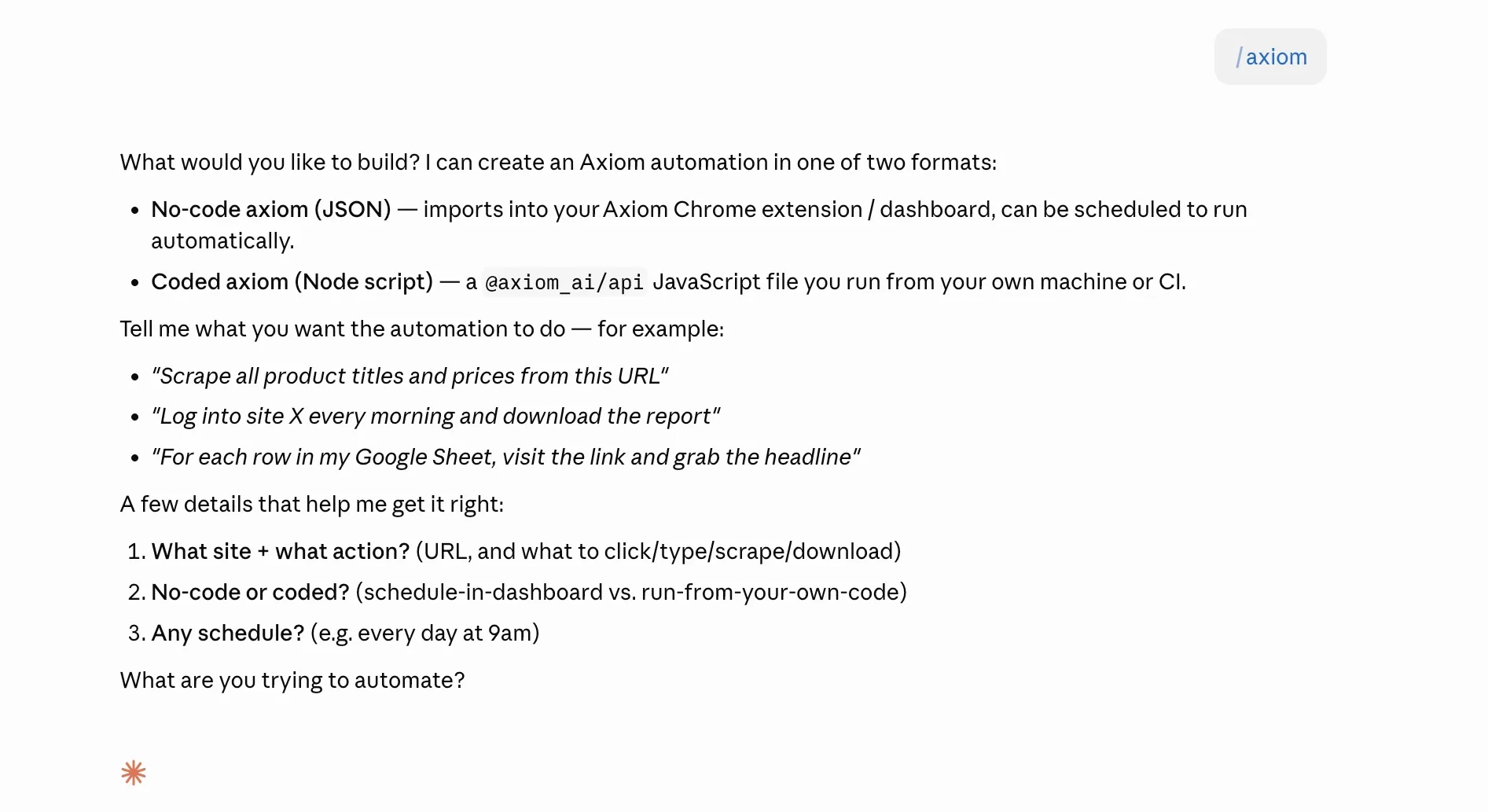
Type /axiom in Claude to launch the skill. It confirms your API key is set, then offers a choice of what to build:
- Build a no-code axiom — saved to your axiom.ai account, runs in the Dashboard, and can be scheduled.
- Build a coded axiom — a Node script using
@axiom_ai/apithat you run from your own repo or CI. - Run a saved axiom — trigger one you already have and poll for results.
For downloading invoices in this example, we will choose *no-code in our prompt.
Describe what you want
Tell Claude the outcome. When a prompt involves navigating and downloading, the skill asks whether to build a no-code axiom or a coded one. Choose no-code.
Build me a no-code axiom that logs into my invoices portal,
finds all my invoice download links, and downloads each PDF.
Answer Claude's questions
The skill interviews you before it builds anything. For downloading invoices, expect it to ask:
- The portal. Give the login page and the page that lists your invoices.
- How to sign in. Say if you're already signed in on your desktop, or give Claude the login fields so it can sign in at the start of the run. Keep credentials out of the prompt and enter them in the extension.
- Which links to collect. Point Claude at the invoice download links so it grabs the right ones, by their label or a CSS selector.
- Where to save the files. Downloads land in your Chrome downloads folder when the automation runs on your desktop, or in Google Drive when it runs in the cloud.
- How to run. Once, or on a schedule to pull new invoices as they appear.
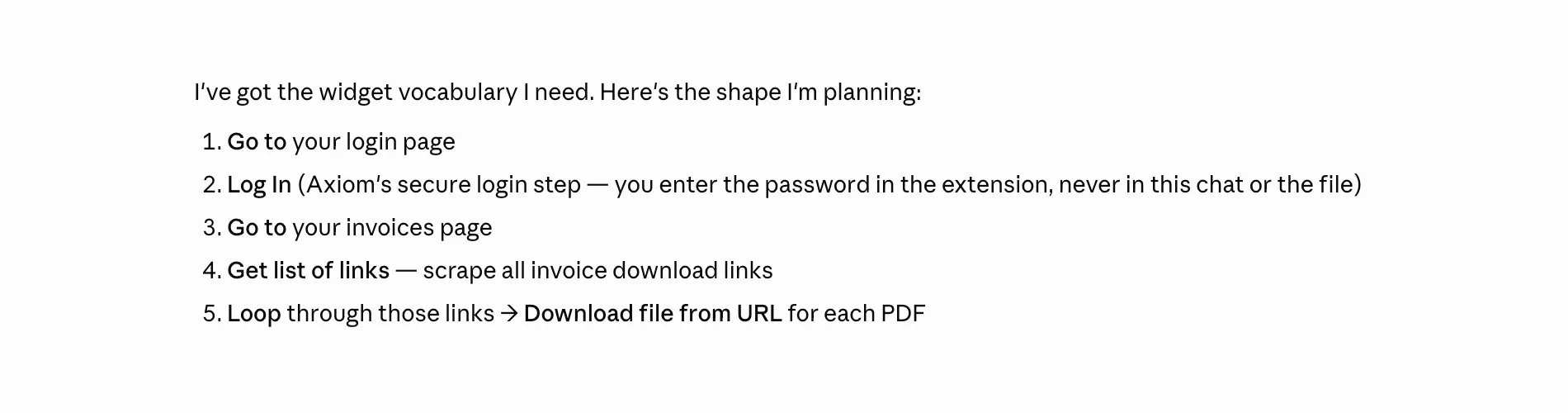
Answer each prompt and Claude assembles and configures the automation for you. You don't place any steps yourself.
Find it in your account
When the interview finishes, the skill uploads the automation straight to your axiom.ai account. There's no file to import.
- Open the axiom.ai Chrome extension, or the Dashboard.
- Find the new automation in your list.
- Open it in the Builder to review or tweak any step before running.
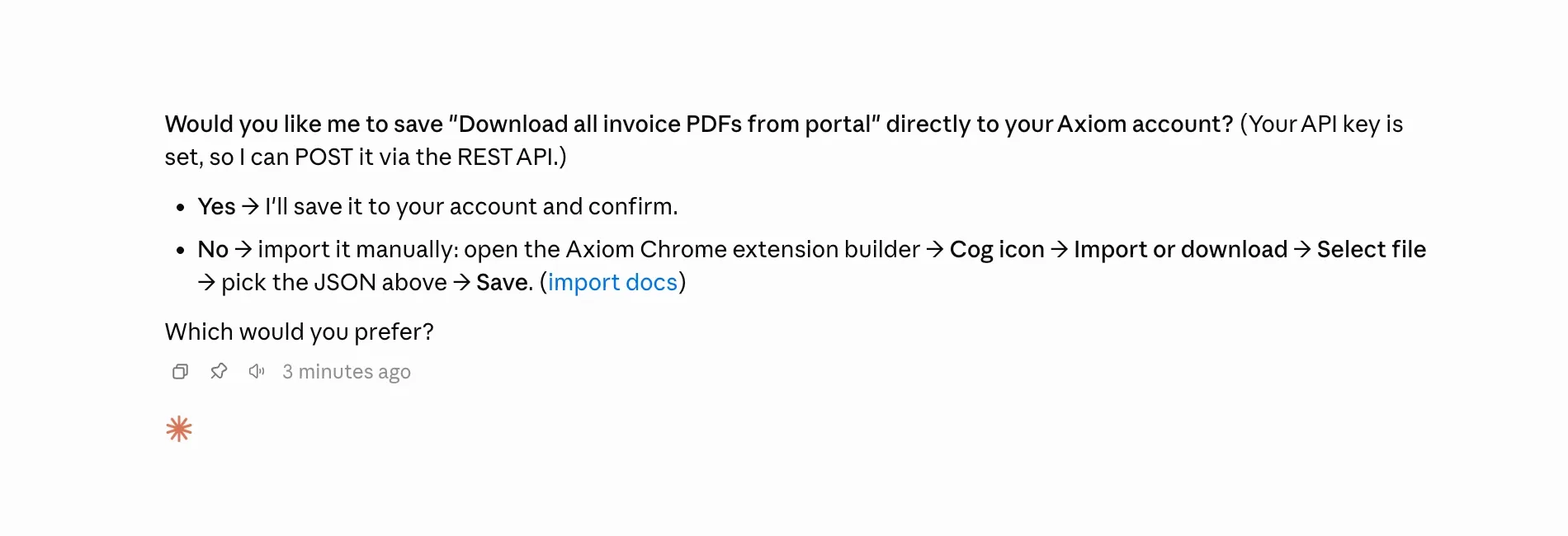
You can also ask Claude to run it for you by name, and it returns a link to watch the run.
Run and schedule it
- In the Builder, run the automation once and confirm the invoices download as expected.
- Set a schedule if you want it to pull new invoices automatically.
- Choose where it runs: your desktop to save files locally, or the cloud to save them to Google Drive.
Note: Local downloads to your Chrome downloads folder only happen on desktop runs. For scheduled cloud runs, save the files to Google Drive instead.
Next steps
- Run it once on a few invoices before scheduling the full job.
- Prefer to write it in code? See Download invoices from a portal behind a login with the Chrome API.
- Explore what else the skill can build on the Build in Claude Code page.