How to build a no-code price monitor with Axiom's Claude Code skill
The axiom.ai skill for Claude lets you build a no-code automation by describing it in plain English. You say what you want, Claude asks a few questions, and it assembles the automation for you. This guide builds a price monitor that scrapes a product price and alerts you when it changes, using a pair of trainers on secretsales.com as the example.
Before you begin
- The axiom.ai skill installed in Claude Code. Open a Claude Code session and submit each command as its own message:
/plugin marketplace add git@github.com:axiom-browser-automation/claude-skill.git
/plugin install axiom@axiom-skills
/reload-plugins
- The axiom.ai Chrome extension installed, so you can run the automation.
- An axiom.ai account. If you don't have one, ask Claude to sign you up and it creates the account and API key for you.
For the full walkthrough, see Install the skill.
Note: The install commands need the Claude Code CLI. Once the skill is installed, you can build day to day from the VS Code extension signed in to the same account.
Start the skill
Type /axiom in Claude to launch the skill. It confirms your API key is set, then offers a choice of what to build:
- Build a no-code axiom — saved to your axiom.ai account, runs in the Dashboard, and can be scheduled.
- Build a coded axiom — a Node script using
@axiom_ai/apithat you run from your own repo or CI. - Run a saved axiom — trigger one you already have and poll for results.
For a price monitor in this example, we will choose *no-code in our prompt.
Describe what you want
Tell Claude the outcome, not the steps. Give it the page, what to extract, and where to send the alert.
Build me a no-code axiom that visits this page,
scrapes the product price, and alerts me whenever the price changes:
https://www.secretsales.com/66165d1f6b502-nike-nike-air-trainer-1-essential-mens-white-trainers-white/
Note: You can skip the menu by saying "no-code" in your first message, as the prompt above does. Claude then goes straight to the interview.
Answer Claude's questions
The skill interviews you before it builds anything. For a price monitor, expect it to ask:
- The page to visit. Paste the full product URL.
- What data to scrape. Say you want the product price. You can describe it in plain English, but pointing Claude at the price element makes the result far more reliable. Tell it the price sits in an element whose class contains
productFullDetail-productPriceFinal, and that it should match on that partial class rather than the full name, because the site adds a changing suffix. - How often to check. For a price watch, hourly or once a day is typical.
- What to do on a change. Choose where the alert goes, for example a webhook to Slack or Discord, or a row appended to a Google Sheet. To detect a change, Claude keeps the last price and compares it on each run, so tell it to alert you only when the new price differs from the last one.
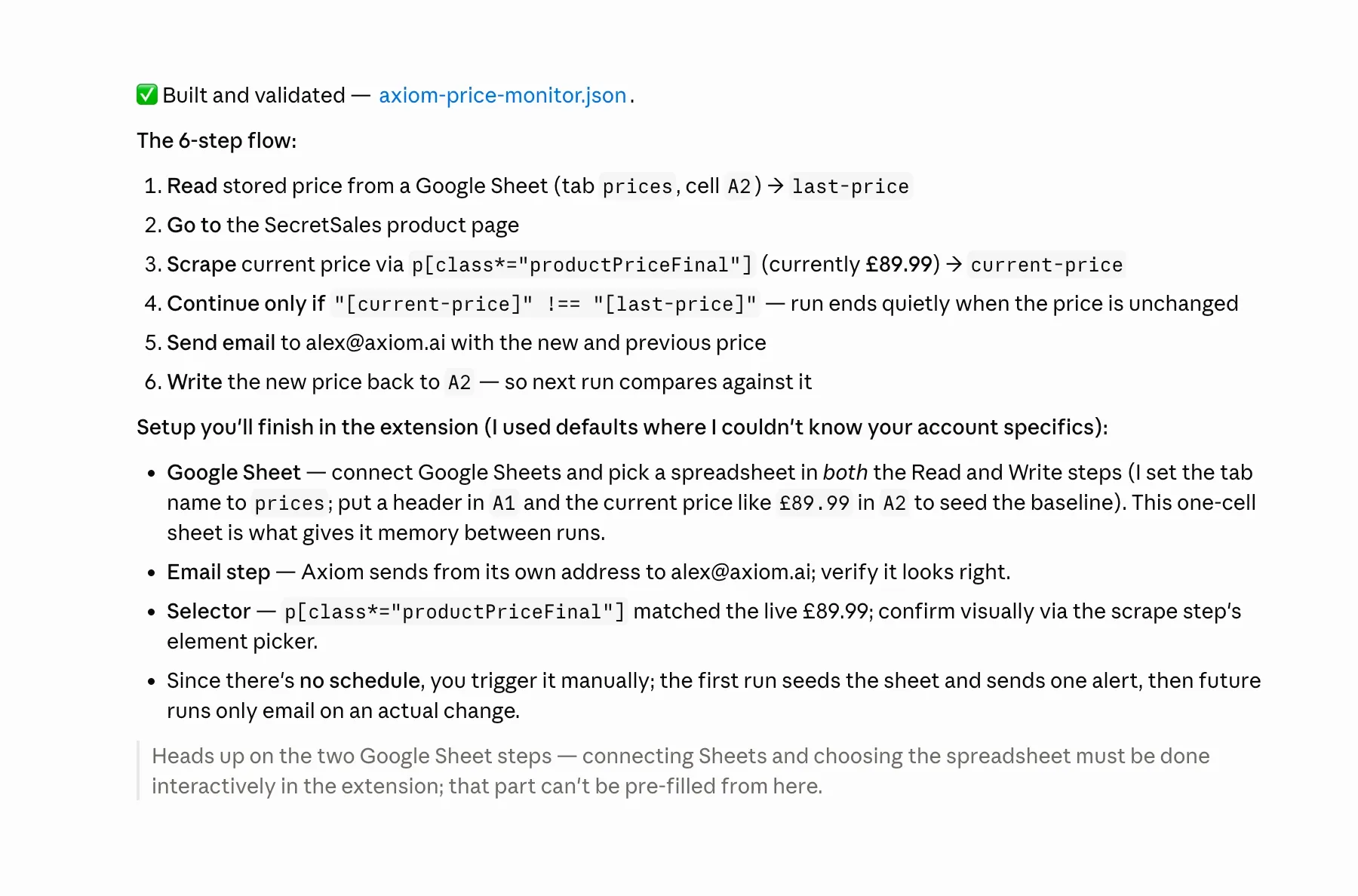
Answer each prompt and Claude assembles and configures the automation for you. You don't place any steps yourself.
Note: Give Claude the exact price text you expect, such as
£54.99, if you want it to strip the currency symbol and compare the number.
Find it in your account
When the interview finishes, the skill uploads the automation straight to your axiom.ai account. There's no file to import.

- Open the axiom.ai Chrome extension, or the Dashboard.
- Find the new automation in your list.
- Open it in the Builder to review or tweak any step before running.
You can also ask Claude to run it for you by name, and it returns a link to watch the run.
Run and schedule it
- In the Builder, run the automation once to confirm it reads the price and fires the alert as expected.
- Set a schedule so it checks the price automatically. Hourly or daily works well for a price watch.
- Choose where it runs: the cloud for hands-off, always-on runs, or your desktop to run locally.
Learn more about running in the cloud or on your desktop.
Next steps
- Prefer to write the same monitor in code? See Monitor a product price for changes with the Step API.
- Watch several products at once by giving Claude a list of URLs to loop over.
- Explore what else the skill can build on the Build in Claude Code page.